Spotify desktop offers users a variety of ways to manage their music experience, but organizing song order isn’t always easy for new users. Whether you want to change the order of songs in your playlist, better arrange your favorite spotify tracks, or manage your playlist before sharing it with others, Spotify provides easy-to-use tools to help you create a smoother and more personalized listening experience.
A well-organized playlist can enhance the listening experience. For example, you can put a slower song at the beginning, your favorite song in the middle, or create a smooth transition between different musical styles. The previous article shared ways to make a playlist collaborative. This guide will explain how to organize songs on Spotify Desktop and provide some practical tips to help you manage your playlists more easily.

Can You Change Track Order on Spotify Desktop
Yes, Spotify desktop allows you to change the order of songs in playlists you create. You can manually move the songs up and down and arrange them according to your preferences.
However, Spotify does not allow users to change the original order of official albums or playlists created by other users. The song order editing function is primarily for playlists you create yourself, which means features like spotify order tracking are mainly useful for keeping track of changes and organizing your own playlist structure rather than modifying the fixed order of content you do not own.
If you want to organize your music collection, creating custom playlists is usually the best option. You can add songs and rearrange their order at any time.
How to Change Track Order in a Spotify Playlist on Desktop
Changing the order of songs in a playlist only takes a few steps. Follow the guide below:
Step 1: Open Spotify Desktop
First, launch the Spotify desktop app on your computer. Log in to your account and wait for the main screen to appear.
Please ensure you are using the desktop version of Spotify, not the web version, as playlist editing tools may work differently on different platforms.
Step 2: Go to Your Playlist
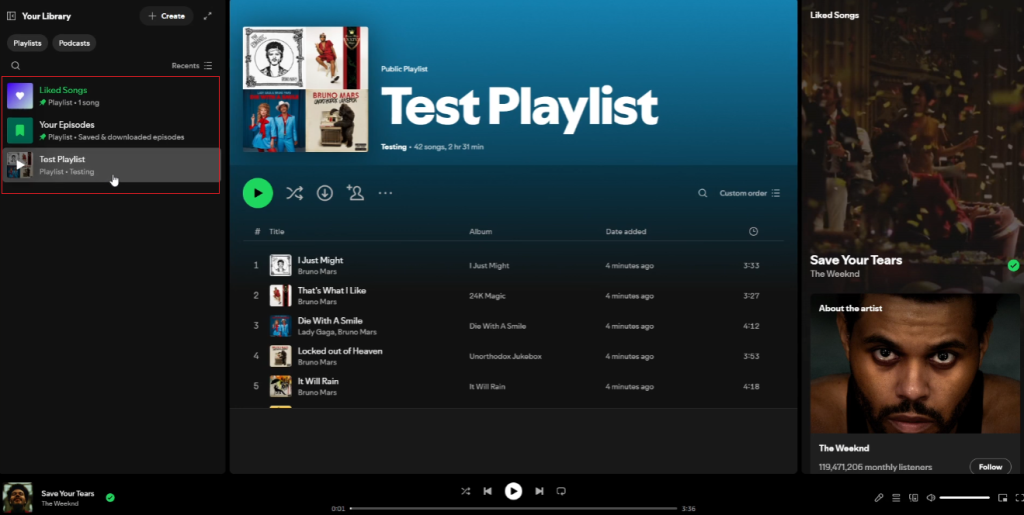
Find the “My Music Library” section in the left sidebar.
Click “Playlists,” then select the playlist containing the songs you want to organize.
Open the playlist page to view all the songs within.
Step 3: Select and Move a Track
Find the song you want to move.
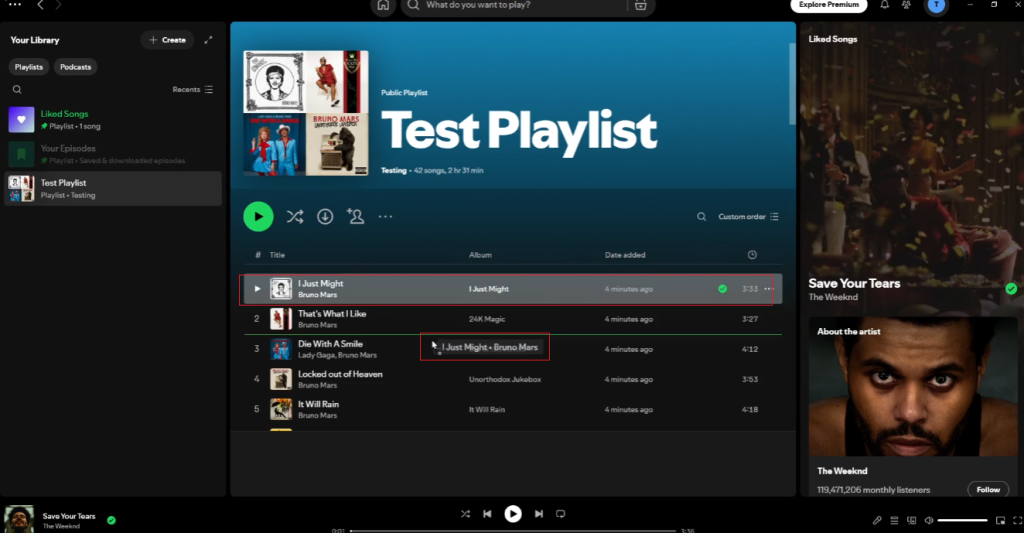
Hover your mouse over the song until the drag option appears. Tap and hold the song, then drag it to your desired location.
You can move songs up or down in the playlist. Release the mouse after finding the right position.
Spotify automatically saves the new order.
How to Sort Songs in Spotify Desktop Playlists
In addition to manually moving tracks, Spotify desktop also offers sorting options to help you organize your songs faster.
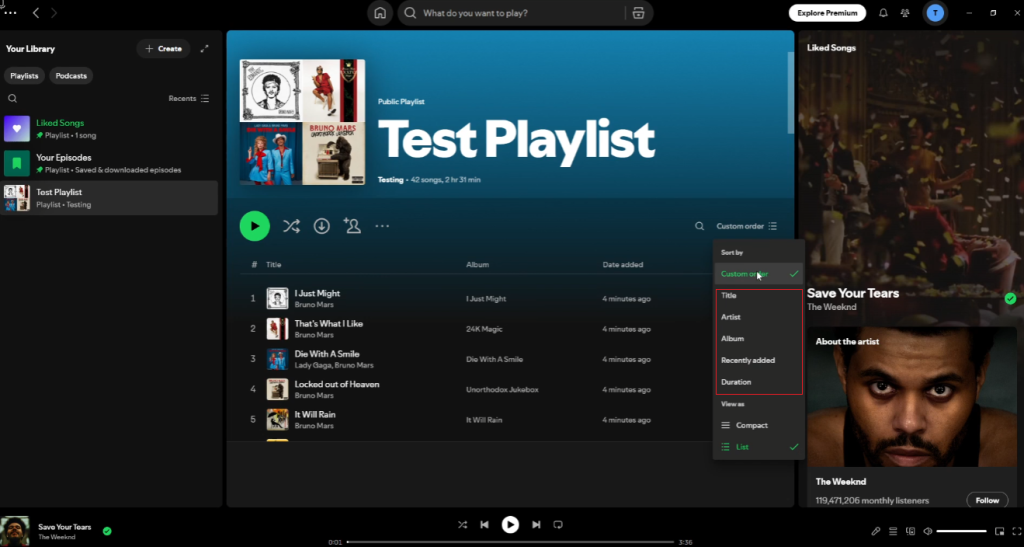
Open your playlist and then click the column header at the top of the track list. Based on the playlist information, you can sort the songs as follows:
- Title
- Artist
- Album
- Date added
- Duration
The sorting feature is very useful when your playlist is long and contains hundreds of songs. For example, sorting by the date of addition can help you quickly find recently added songs.
Please note that sorting will change how you view your playlist, but it will not always permanently change your custom song order. If you want to put your song on Spotify and keep a specific playback sequence, manually arranging the songs is usually a better method, as sorting options mainly affect the current view rather than saving a fixed order.
How to Organize Large Spotify Playlists
When a playlist contains hundreds of songs, it becomes very difficult to manage. Here are some practical methods:
Divide Songs Into Smaller Playlists
Don’t put all your content in one playlist; instead, create multiple playlists based on your different needs.
Smaller playlists are easier to organize and update.
Remove Songs You No Longer Listen To
Over time, some songs on your playlist may no longer suit your taste.
Regularly check your playlist and delete songs you frequently skip. This helps keep the playlist tidy.
Use Playlist Descriptions
Adding a brief description can help you remember the purpose of the playlist.
This makes managing multiple playlists much easier.
Can You Change Spotify Track Order on Mobile After Editing on Desktop
Yes. Changes made to playlists on Spotify desktop will sync to your account.
After organizing your songs on your computer, you can open Spotify on your phone to view the updated playlist order.
This makes desktop editing very useful, as it is generally more convenient to move multiple songs using a mouse and a larger screen.
Common Problems When Organizing Spotify Track Order
Sometimes users may have trouble changing playlist order. Common reasons include:
1. You Are Not the Playlist Owner
Spotify only allows you to fully edit playlists that you own or that you have editing rights to.
2. The Playlist Is Sorted Instead of Using Custom Order
If your playlist is sorted by title, artist, or other options, the order you manually set may not be displayed.
If you want to view the custom track order, please switch back to the custom playlist view.
3. Spotify Has Not Synced Changes Yet
If your updated playlist does not appear on other devices, please wait a moment and check your network connection. Spotify usually automatically syncs changes to playlists.
Tips for Managing Spotify Playlists More Efficiently
Organizing your Spotify playlists doesn’t take much time. Developing some simple habits can help you manage your songs better and make your playlists easier to use. Good spotify playlisting practices, such as removing duplicate tracks, updating playlist names, and sorting songs based on mood or activity, can make your music library more organized. By spending a few minutes checking your playlists regularly, you can quickly find the songs you want and enjoy a smoother listening experience.
1. Create Playlists Based on Different Needs
Avoid putting all your songs in one large playlist. Create separate playlists for different scenarios, such as workout, relaxation, travel, or everyday listening.
2. Update Your Playlists Regularly
Regularly review your playlists and delete songs you no longer like. This keeps your music collection fresh and interesting, and also makes it easy to browse.
3. Keep Similar Songs Together
Grouping tracks together in terms of style, mood, or energy level can create a smoother listening experience.
4. Add New Songs Carefully
Before adding a new track, consider whether it fits the theme of the playlist. This prevents playlists from becoming disorganized over time.
5. Use Clear Playlist Names
Choose a simple and clear name so you can quickly understand the purpose of the playlist. Clear titles make it easier to find the right music when you have multiple playlists.
6. Avoid Making Playlists Too Long
Large playlists can be difficult to manage. If your playlist contains too many songs, consider splitting it into multiple smaller playlists.
Conclusions
Organizing song order on Spotify desktop is a simple way to enhance your music experience. You can create playlists that suit your personal style by creating your own spotify music playlists, manually moving songs, and using sorting tools. These features allow you to arrange tracks based on mood, genre, or listening habits, making it easier to enjoy a smoother and more personalized music journey.
Whether you’re creating a playlist for everyday listening, special occasions, or to share with friends, a well-ordered playlist will allow each song to resonate with the others, creating a cohesive whole. Managing playlists is now faster and easier with Spotify Desktop.