Collaborative playlists are one of the easiest ways to share music with friends, and a collaborative playlist allows everyone to add songs and delete tracks to create playlists together. It’s more like a shared space than a regular playlist. Many users like this feature because it makes listening to music more social and interactive.
In this guide, you will learn how to create and use collaborative playlists step by step, as well as some practical tips for managing playlists.

What is a Collaborative Playlist
Collaboration playlists on Spotify are playlists shared by multiple people and allow multiple people to edit them. A typical guide on how to make a playlist collaborative spotify shows that you first enable collaboration settings before sharing the playlist link. Unlike the creator, who has control over songs, invited users can also add, delete, and reorder songs.
It’s like a shared music space where everyone can contribute their own efforts. One person can add newly discovered songs, another can share their favorite classic tracks, and everyone works together to create the final playlist.
This type of playlist is often used for listening to music together with others, during travel, or for simple music sharing among friends. Because the playlist changes based on each person’s additions, it makes the listening experience more flexible and interactive.
How to Create a Collaborative Playlist
Creating collaborative playlists on Spotify Mod APK is simple, but it’s best to follow the steps carefully to ensure you set it up correctly from the start. The following is a more detailed step-by-step guide.
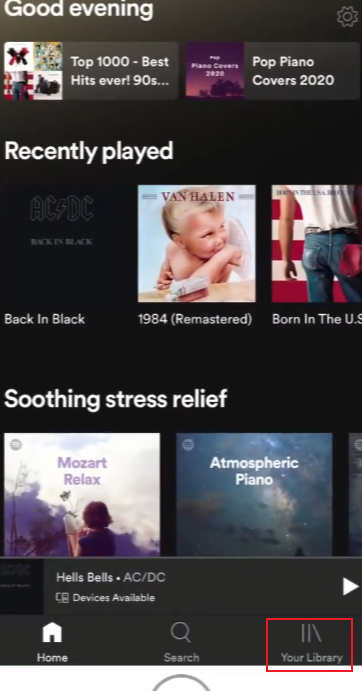
1. Open Spotify and go to your library
Launch the application and go to the “Media Library” section. This is where all your playlists are stored and managed.
2. Create a new playlist
Click “Create Playlist”. Give it a name that matches your mood or purpose, such as “Weekend Picks” or “Road Trip Songs”.
3. Add basic details
You can add a cover image and a brief description. While not strictly necessary, this can help others get to know the playlist’s theme more quickly.
4. Enter the playlist page
Once the playlist is created, open it to access all editing options. You can enable collaboration features here.
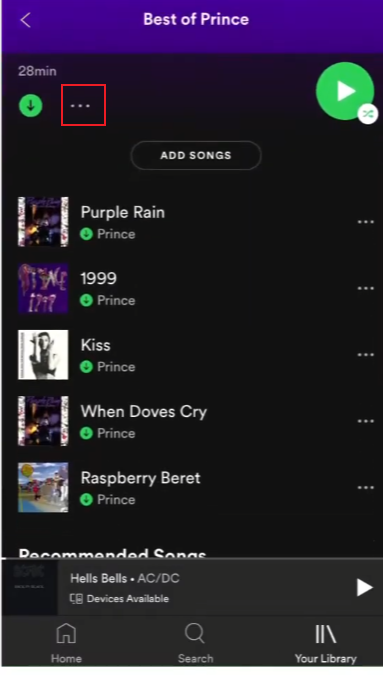
5. Open the settings menu
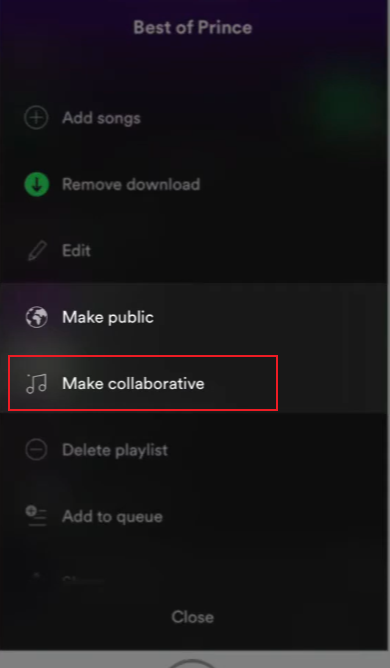
Click the three-dot menu icon on the playlist page. This menu contains all the main controls for editing playlists.
6. Turn on collaborative mode
Choose either the “Create Collaborative Playlist” or “Collaborative Playlist” option. Once enabled, other people you invite can edit the playlist.
7. Copy and share the link
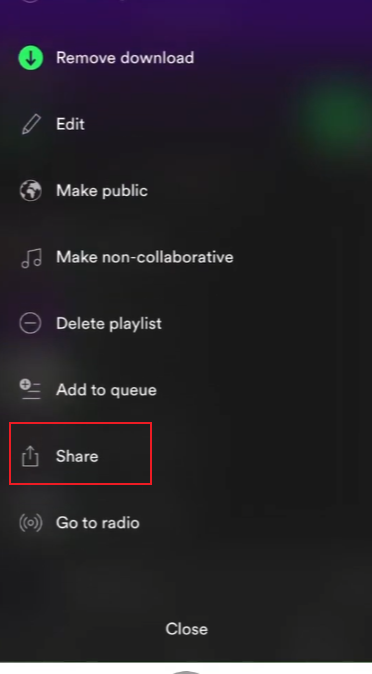
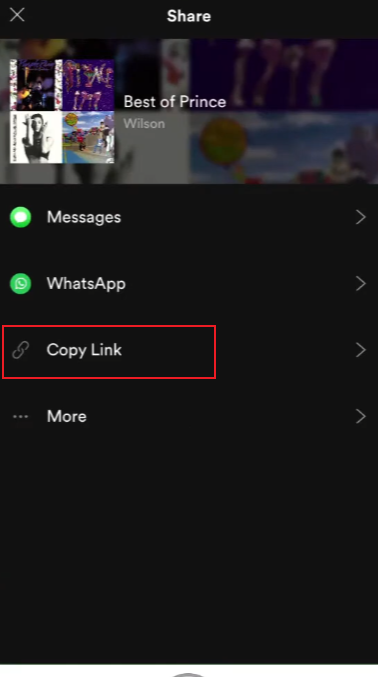
After enabling collaboration, use the “Share” option to copy the playlist link. Then send it to your friends via chat apps, text messages, or social media platforms.
8. Ask others to join
Anyone can access the playlist and start adding music by opening the link, without having to go through the setup process again.
9. Start adding songs together
Once friends join, everyone can contribute by adding songs, changing their order, or updating the playlist flow.
10. Keep the playlist organized
As the number of songs increases, you may need to adjust the order or remove duplicate tracks to keep the playlist smooth and enjoyable.
How to Add Songs in a Collaborative Playlist
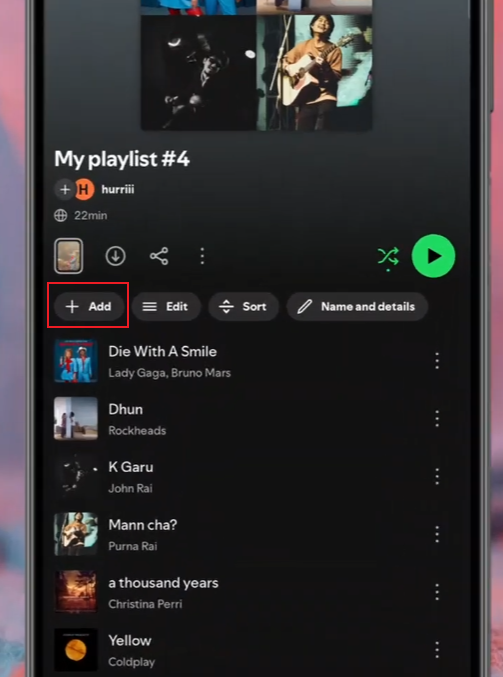
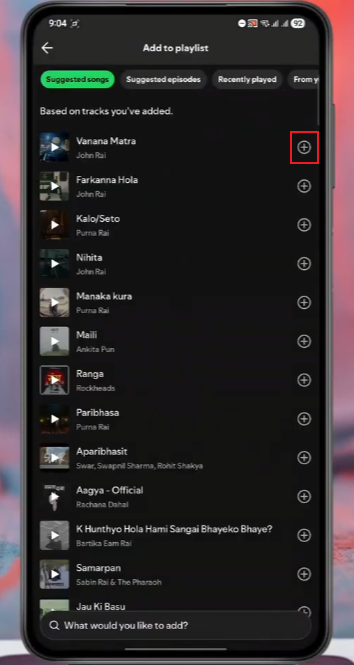
Adding songs to a collaborative playlist on Spotify isn’t complicated, but the method can vary slightly depending on how you browse music. The whole process is very quick, and all members of the playlist can see the changes immediately.
1. Adding songs from search
The most direct way is through the search bar. You can enter the song title or artist, and then open the song page. On the right side of the song, click the three dots. Select “Add to playlist”, then select Share playlist. The song will be added to the playlist immediately.
This method is useful when you already know what you want to add.
2. Adding songs while listening
If you find a song you like while playing music, you can add it to your playlist without leaving the player. Open the “Now Playing” screen, tap the three-dot menu, and then select “Add to playlist”. Next, select the collaborative playlist.
This is often used when you find new music through autoplay or radio suggestions.
3. Drag and drop on desktop
There are even faster methods on a computer. You can drag and drop songs directly from the playlist to the sidebar playlist. This is very useful when organizing multiple songs at once.
It also helps when you want to quickly build a playlist from albums or artist pages.
4. Adding from other playlists
You can also borrow songs from other playlists. Open any playlist, find your favorite track, and then use the same menu options to add it to your collaborative playlist. This helps you build mixes from different music sources without having to start from scratch.
5. Keeping additions organized
When many people are adding songs, the playlist can grow quickly. It helps to:
- Add songs that match the theme
- Avoid repeating the same tracks
- Check the playlist before adding multiple songs at once
A little attention keeps the playlist balanced and easy to listen to.
Managing a Collaborative Playlist
When more people edit a playlist, it can become messy. Here are a few simple ways to keep it clean:
1. Set a theme
Give the playlist a clear idea, like “road trip,” “chill night,” or “work focus.” This helps everyone choose better songs.
2. Check updates often
Songs can be added quickly, so it helps to review the playlist once in a while.
3. Reorder tracks
You can drag and drop songs to adjust flow. A good order makes listening smoother.
4. Remove duplicates
Sometimes the same song gets added more than once. Cleaning it keeps the playlist neat.
Why People Use Collaborative Playlists
Collaborative playlists are popular because they make music more social and flexible. Instead of one person controlling everything, everyone in the group can participate, and many users often look for guides such as how to add songs to a shared spotify playlist when they start exploring these features together. This has changed the way people experience and share music in a simple yet meaningful way.
1. Shared music taste
Even within the same social circle, people often have different musical tastes. Creating a collaborative playlist brings together these diverse musical tastes. Over time, playlists will blend different styles, moods, and artists, ultimately reflecting the preferences of the entire group, rather than just one person.
2. Easier planning for group activities
Music is always an important part of creating atmosphere when people plan trips, parties, or gatherings. Shared playlists allow everyone to add songs they think are appropriate for the occasion. This saves time and avoids the hassle of one person selecting all the music.
3. Music discovery
One of the most common uses is for discovering new songs. When multiple people add songs, you’ll often discover some songs you’ve never heard before. This makes it easier to explore different music genres without having to actively search for them.
4. Staying connected with friends
For friends who don’t see each other often, especially those who live in different places, a playlist created together can become a bond that keeps them connected. Adding songs allows you to easily share the music you’re listening to and your mood changes.
5. Balanced control
Control is no longer exercised unilaterally by one person, but is now shared. This creates a more balanced experience, preventing any single flavor from dominating the playlist. This is more open and fair for all participants.
6. Continuous updates
Unlike regular playlists that may remain unchanged for a long time, collaborative playlists are constantly changing. New songs are added regularly, so the playlist always stays fresh and interesting without requiring continuous personal effort.
Conclusion
A collaborative playlist is more than just a music list; it’s a shared space where people can connect through music. Once created, anyone can easily join and work together to create a unique listening experience.
When used properly, it can transform simple music listening into a more interactive and personalized experience.