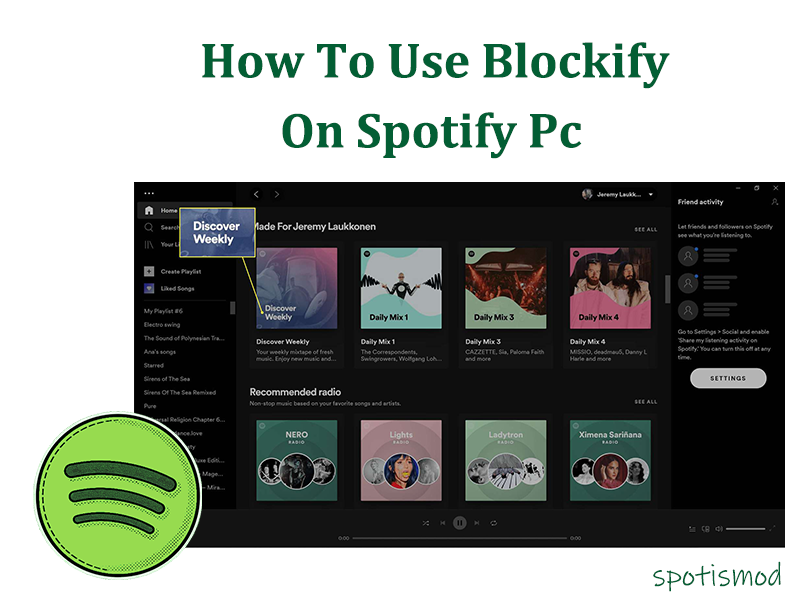
Spotify is one of the most popular music streaming platforms, but some users may encounter a strange problem: songs will suddenly skip without any user interaction. For example, a song might skip to the next track after a few seconds, a playlist might play too fast, or Spotify might repeatedly skip songs. This issue can become more noticeable when Spotify skipping songs rapidly happens during playback, making it difficult to enjoy music normally. The cause may be related to app settings, network problems, cached data, or conflicts with other software running on the device.
This problem can be caused by a variety of reasons. Network issues, application bugs, account problems, outdated versions, and third-party tools can all affect Spotify’s performance. If you’re wondering why Spotify skips songs on its own, understanding the possible reasons will help you find the right solution.
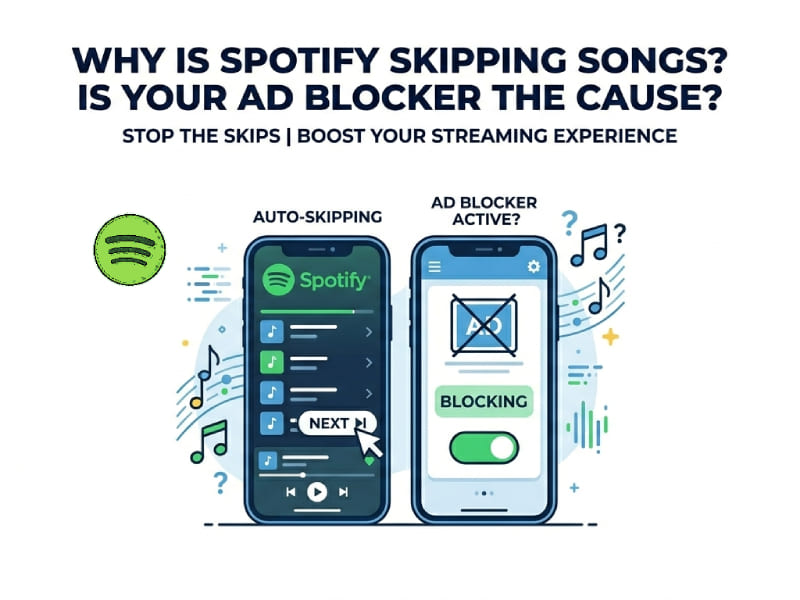
Why is Spotify constantly skipping songs
When Spotify frequently skips songs, it usually means that the app cannot load or play the current track correctly. But the problem isn’t always with Spotify itself. Your device settings, network connection, or installed extensions may also affect playback.
Here are some common reasons why Spotify may keep skipping songs:
1. Poor or unstable internet connection
Spotify requires a stable internet connection to play music smoothly. When the network connection is unstable, Spotify may be unable to load the next part of a song. At this point, the app will not stop playing completely, but will jump to another song.
This issue is more common when:
- Switching between Wi-Fi and mobile data
- Using a crowded public network
- Having a weak signal in certain areas
- Running many apps that use internet data at the same time
You can try switching to a different network or restarting your router to see if the problem improves.
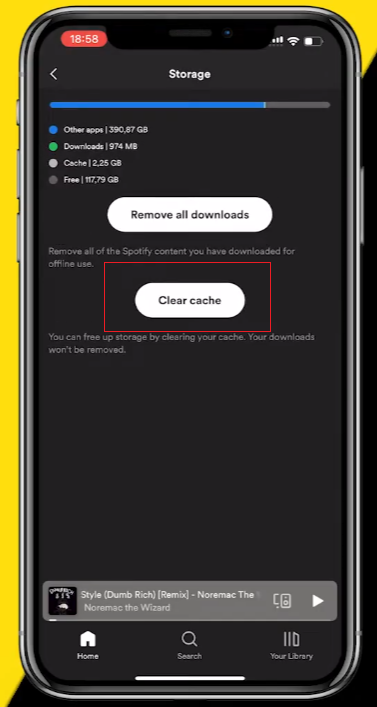
2. Spotify cache problems
Spotify stores temporary files on your device to speed up music loading. Over time, these cached files may become too large or contain incorrect data, leading to playback problems.
A damaged cache can lead to issues such as:
- Songs stopping suddenly
- Tracks loading slowly
- Spotify skipping songs automatically
- The app freezing during playback
Clearing your Spotify cache can refresh these temporary files without deleting your account information or playlists.
3. Outdated Spotify app version
Spotify regularly releases updates to improve performance and fix bugs. If you are using an older version of the app, you may experience playback issues.
An outdated app may have trouble with:
- New system updates
- Device compatibility
- Playback features
- Account synchronization
Keeping Spotify updated can help prevent unexpected skipping issues.
4. Multiple devices using the same Spotify account
Spotify allows users to link their accounts across different devices. However, if your account is active on other devices, playback behavior may be abnormal.
For example, if someone else starts playing music using your account, Spotify may switch songs or stop your current playback. This causes Spotify Mod APK to appear to automatically skip songs.
Checking your account settings and logging out of unused devices can help resolve this issue.
5. Corrupted downloaded songs
Spotify Premium users can download songs for offline listening. Sometimes, due to incomplete downloads or application errors, downloaded files may not play correctly.
If only some of the downloaded songs are experiencing frame skipping, deleting those songs and re-downloading them might solve the problem.
6. Device performance issues
Spotify requires sufficient system resources to run smoothly. If too many processes are running in the background on your phone or computer, the app may not function properly.
Restarting the device can usually improve system performance.
Why does Spotify keep auto skipping songs
Spotify may automatically skip songs if an abnormal situation occurs during playback. While many users initially suspected a software glitch, the actual cause may be related to settings, software conflicts, or account behavior.
Here are some situations that might cause Spotify to automatically skip songs.
Ad blockers and Spotify playback problems
Some users install ad blockers or modified web tools to block ads in different applications or browsers. These tools can sometimes interfere with Spotify’s communication with its servers.
Spotify uses network connections to verify playback information, load ads for free users, and manage streaming features. If ad blockers block certain requests, Spotify may not be able to process playback properly.
In some cases, users may notice:
- Songs skipping after a few seconds
- Tracks changing automatically
- Playback interruptions
- Spotify acting differently from normal
If you are using an ad blocker on your browser, device, or network, temporarily disabling it can help you check if it’s related to the ad-blocking issue.
Browser extensions affecting Spotify Web Player
Many people use Spotify through a browser. Browser extensions can improve the browsing experience, but some extensions may interfere with the operation of web applications.
Possible extensions that may affect Spotify include:
- Ad blocking extensions
- Privacy extensions
- Script control extensions
- Network filtering tools
If Spotify Web Player keeps skipping songs, try opening Spotify in another browser or disabling extensions one by one to find the cause.
Autoplay settings and playback controls
Spotify has an autoplay feature that continues playing songs after an album or playlist ends. Sometimes users may confuse this feature with automatically skipping songs.
You can check the playback settings to see how Spotify handles the next song. Adjusting autoplay or queue settings may improve your listening experience.
Bluetooth connection problems
Bluetooth devices such as headphones, speakers, and car stereos sometimes send incorrect commands to Spotify.
For example, button malfunctions or unstable Bluetooth connections may cause repeated sending of skip signals. If Spotify only skips songs when connected to a specific Bluetooth device, it may be due to a problem with the device connection.
Try disconnecting the Bluetooth connection and playing music directly through your phone, then compare the results.
How to fix Spotify skipping songs automatically
If Spotify keeps skipping tracks, you can try these solutions:
Restart Spotify
Close the app completely and open it again. This can fix temporary playback errors.
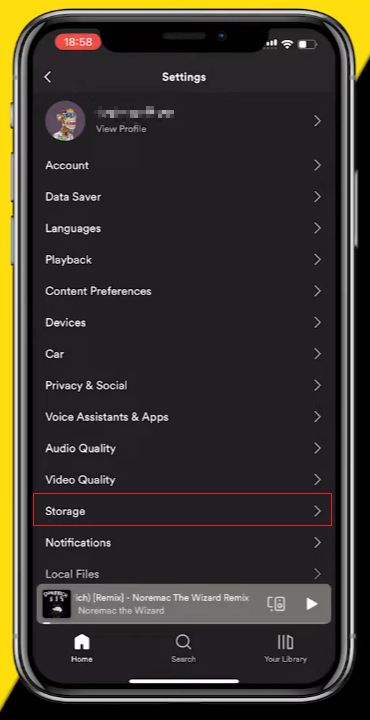
Clear Spotify cache
Deleting old cache files can help Spotify rebuild temporary data and improve performance.
Update Spotify
Install the latest version of Spotify from the official app store to get bug fixes and performance improvements.
Check your internet connection
Try opening other apps or websites to test your network connection. If the network is unstable, switching networks may solve the problem.
Disable ad blockers and extensions
If you are using the Spotify web player, please check if your browser extensions are affecting playback. Temporarily disabling these extensions can help pinpoint the problem.
Log out and log back into Spotify
Account synchronization errors can sometimes cause playback issues. Logging out and logging back in will refresh your account connection.
Reinstall Spotify
If other methods fail, reinstalling the application can remove corrupted files and create a fresh installation.
Does an ad blocker always cause Spotify skipping songs
Ad blockers are not always the reason why Spotify skips songs. Many users may encounter this problem due to common issues such as network instability, application vulnerabilities, cache errors, or device settings, which can lead to Spotify auto skipping songs unexpectedly. Identifying the actual cause can help users apply the right solution and restore a smoother listening experience.
However, if Spotify starts skipping songs after installing a new ad blocker or changing browser settings, the ad blocker may be related to this issue. Testing Spotify after disabling ad blockers is a simple way to check.
Conclusion
Spotify may skip songs automatically for a variety of reasons. Network connectivity issues, cached files, outdated applications, account settings, Bluetooth devices, and browser extensions can all affect playback.
Ad blockers can sometimes interfere with Spotify, especially when using web players or web filtering tools. But this is only one of many possible reasons.
By checking each possible cause one by one, you can usually find the root cause of Spotify skipping songs and restore a smooth listening experience.