Spotify is one of the world’s most popular music streaming platforms. Many users want to share Spotify songs during online meetings, games, live streams, or voice chats. In addition to playing music through your speakers, you can also input Spotify audio through your microphone for a smoother listening experience for everyone in the conversation. Whether you use the official app or alternatives such as Spotify Premium Mod APK, the basic process of routing audio to your microphone remains similar across most devices and communication platforms.
We have discussed how to make the Spotify app louder pc before. This guide will show you how to play Spotify music through your microphone on different platforms and provide relevant tools and best practices for different scenarios.
Why Play Spotify Through Your Microphone
There are many reasons why users choose to play Spotify through their microphone instead of using external speakers directly. Importing Spotify audio directly into voice chats or streaming apps provides a smoother, more enjoyable experience for all participants. Some users, including those using a Spotify modified version, prefer this setup because it allows music to be shared more clearly during online conversations, gaming sessions, and live streams without relying on speaker output that may reduce audio quality.
For gamers, sharing music can make long gaming sessions even more enjoyable. Whether playing games with friends or participating in community events, background music can create a more engaging atmosphere without everyone having to turn on Spotify individually.
Content creators and broadcasters also use this setup to play music while providing commentary. Music and voice are transmitted through the same audio system, allowing for better volume control and creating a more professional listening experience for the audience.
In online meetings, presentations, or virtual events, music can be used to fill the gaps before a meeting begins or during breaks. It can also help create a warm atmosphere, making participants from different locations feel at home.
Some users like to share new songs, playlists, or favorite artists with their friends in real time. No need to send links and ask others to play the same song; simply play Spotify through your microphone to let everyone hear the music instantly.
Regardless of the purpose, routing Spotify audio through the microphone channel, if configured correctly, can make online interactions more interactive and fun.
Understanding How Audio Routing Works
Normally, your microphone only captures sounds from your voice.
Spotify audio is sent directly to your computer’s speakers or headphones. To allow others to hear Spotify through your microphone channel, you need to route your desktop audio to a virtual microphone source.
This is commonly done using:
- Virtual audio cables
- Audio mixers
- Streaming software
- Sound routing applications
These tools create virtual inputs and outputs that can transfer Spotify audio alongside your microphone audio.
Method 1: Use Virtual Audio Cable
A virtual audio cable acts like an invisible audio connection inside your computer.
Steps
- Install a virtual audio cable application.
- Set Spotify output to the virtual cable.
- Configure the virtual cable as an input device.
- Select the virtual cable as your microphone source in your voice chat application.
- Start Spotify playback.
Once configured, the music will be transmitted through the selected microphone channel.
Advantages
- High audio quality
- Stable performance
- Works with many apps
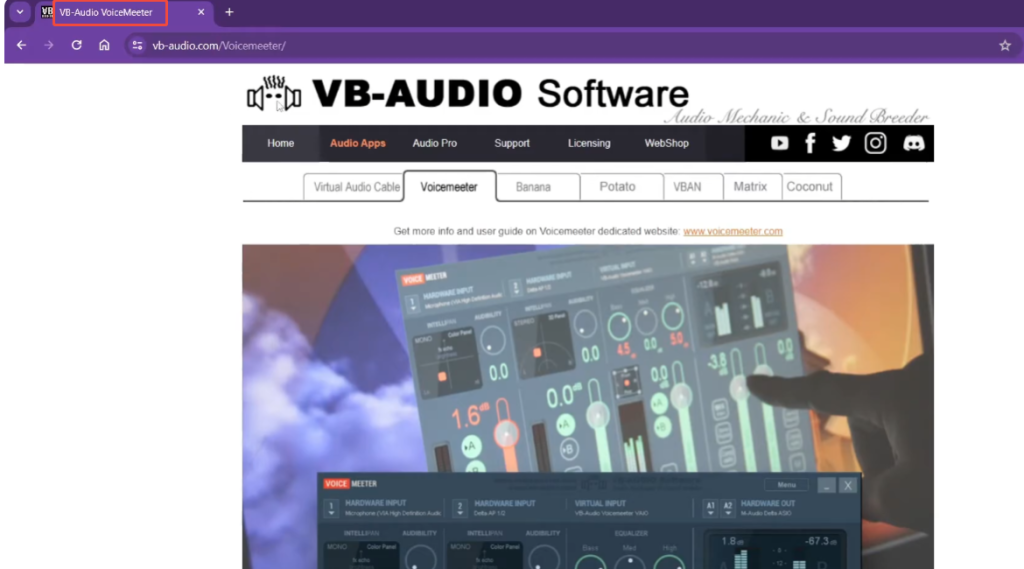
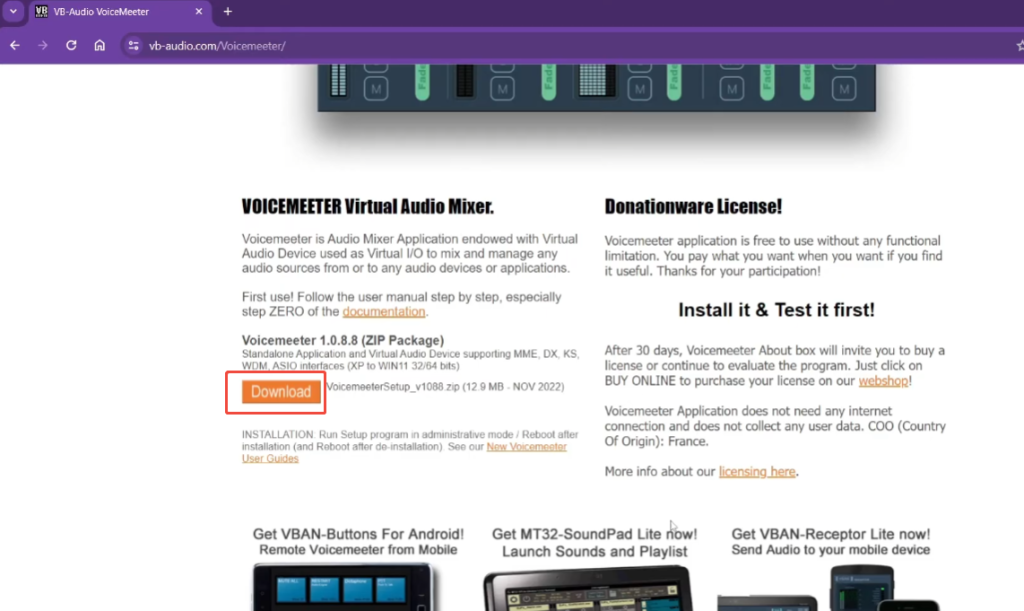
Method 2: Use VoiceMeeter
VoiceMeeter is one of the most popular audio mixing tools for Windows.
It allows users to combine microphone input and Spotify output into a single audio source.
Setup Process
- Install VoiceMeeter.
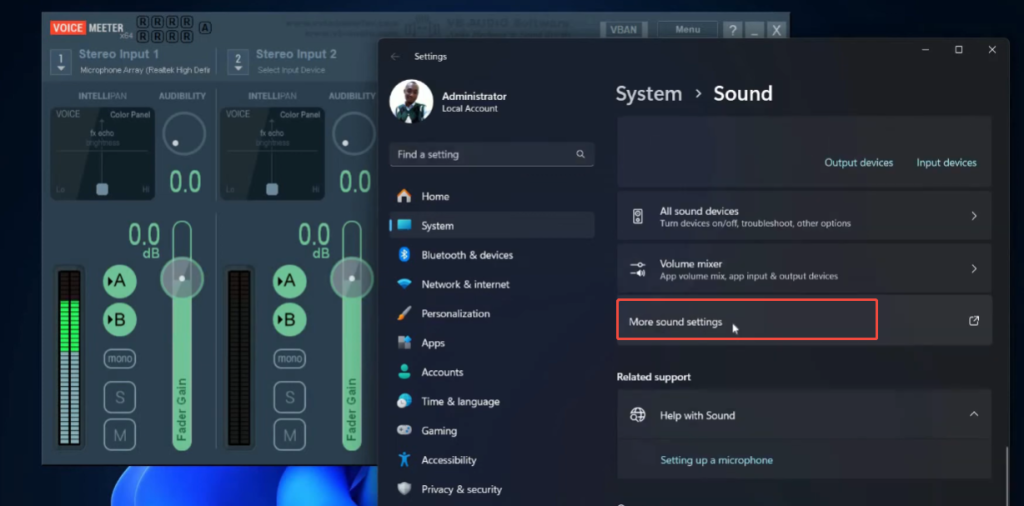
- Select your microphone as Hardware Input.
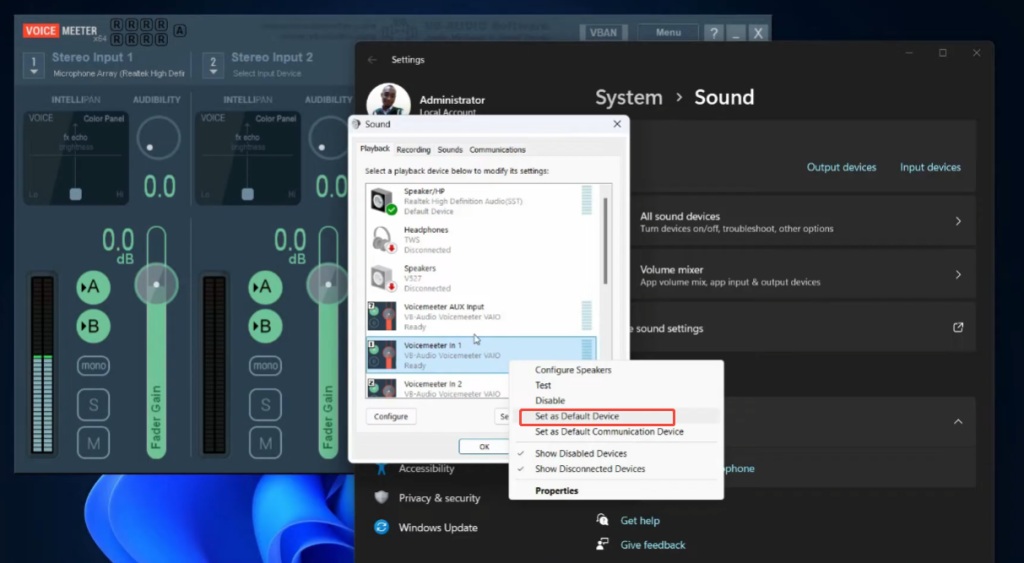
- Route Spotify audio into a virtual input.
- Mix both sources together.
- Set VoiceMeeter Output as the microphone device in your communication software.
This method provides greater control over audio levels.
Features
- Individual volume controls
- Multiple audio channels
- Noise-free routing
- Real-time adjustments
Method 3: Use OBS Studio
OBS Studio is often associated with streaming, but it can also help route Spotify audio.
Basic Setup
- Add your microphone source.
- Add a desktop audio source.
- Create a monitoring output.
- Route both sources into a virtual device.
- Select that virtual device as your microphone.
This approach is useful for content creators who already use OBS.
Method 4: Play Spotify Through Mic on Discord
Discord is one of the most common platforms where users want to share music.
Option A: Audio Routing
Use a virtual audio cable and choose the cable as the Discord microphone source.
Option B: Music Bots
Some Discord communities use dedicated music bots that stream songs directly into voice channels.
Comparison
| Method | Setup Difficulty | Audio Quality | Control Options |
| Virtual Audio Cable | Medium | High | Basic |
| VoiceMeeter | Medium | High | Advanced |
| OBS Studio | High | High | Very Advanced |
| Music Bot | Easy | High | Limited |
Method 5: Play Spotify Through Mic While Gaming
Many multiplayer games include built-in voice chat.
Examples include:
- Team-based shooters
- Survival games
- Open-world multiplayer games
- Racing communities
To share Spotify music while gaming:
- Configure a virtual mixer.
- Combine game chat and Spotify audio.
- Balance music volume below your voice level.
- Use push-to-talk or open microphone depending on preference.
A balanced mix helps maintain clear communication while sharing music.
Common Audio Settings to Adjust
After routing Spotify audio through the microphone channel, spending a few minutes fine-tuning the settings can significantly improve the listening experience. Even with everything connected correctly, music that is too quiet, too loud, or unbalanced with vocals may not sound as intended. If you are using Spotify APK latest version 2026, check the system volume, microphone gain, and audio enhancement options to ensure clear playback. Adjusting these settings carefully can help create a smoother and more balanced sound for both music and voice communication.
Microphone Volume
When speaking in voice chat, meetings, or live streams, the microphone volume should always be set to the primary audio source. If the microphone volume is set too low, listeners may have difficulty hearing you, especially when the music is loud. If the volume is set too high, your voice may sound harsh or drown out the background music.
Spotify Playback Volume
Spotify’s built-in volume control helps balance music volume before the audio signal reaches the routing software. Slightly lowering the volume on Spotify can often make the mix sound more natural and prevent the song from drowning out the conversation.
Input Sensitivity
Many communication platforms include an input sensitivity setting. This determines how easily your microphone channel becomes active. Proper sensitivity settings help ensure that both your voice and Spotify audio are transmitted consistently without sudden volume changes.
Output Device Selection
Make sure that Spotify, your routing software, and your communication apps are using the correct audio devices. Incompatible input/output devices may cause problems such as audio loss, sound repetition, or abnormal volume.
Audio Monitoring
The monitoring feature allows you to hear the same audio mix as other participants. This helps check if the balance between Spotify music and microphone audio is correct. Occasionally listening to your own output can help identify problems before other participants notice them.
Music-to-Voice Balance
One of the most important adjustments is finding the optimal balance between music and voice. Background music should complement the dialogue, not overshadow it. Many users will lower the music volume to about 20% to 40% of the microphone volume to get a clearer and more enjoyable listening experience.
FAQs
1. Can I play Spotify through my mic without additional hardware?
Yes. Most users can use software solutions, such as virtual audio cables, audio mixers, or streaming applications, to route Spotify audio to their microphone channels. These tools create virtual audio paths, allowing music and voice to be transmitted simultaneously.
2. Why can’t others hear my Spotify music?
This typically happens when Spotify still sends audio directly to your speakers or headphones, rather than to a virtual audio device used for routing. Checking the input and output settings in Spotify and your messaging app can usually resolve this issue.
3. Can I use Spotify through my mic on Discord?
Yes. Discord supports custom microphone input, allowing users to select a virtual audio device that can simultaneously stream microphone and Spotify audio. Many gamers and community administrators use this setting to share music in voice channels.
4. Will Spotify music and my voice play at the same time?
Yes. Audio mixing software can combine multiple audio sources into a single output, allowing listeners to hear your voice and content played on Spotify simultaneously. The volume can be adjusted independently for a balanced listening experience.
5. What is the easiest method for beginners?
Virtual audio cable solutions are often considered the simplest option. Compared to advanced audio mixers, they require less setup while still providing reliable audio routing for most voice chat applications.
6. Can I control Spotify volume separately from my microphone?
Yes. Most audio routing and mixing tools allow for separate control of the volume of music and microphone input. This allows you to easily reduce the volume of background music while keeping your voice clear and easy to hear.
Final Thoughts
Playing Spotify music through a microphone is much easier than many people imagine. Modern audio routing tools can combine voice and music into a single audio source for use in games, live streaming, meetings, and online communities. Many users also look for ways to enjoy Spotify no ads while sharing music, making the listening experience smoother and more enjoyable for both the host and the audience.
Whether you choose Virtual Audio Cable, VoiceMeeter, OBS Studio, or other audio mixers, the key is to understand how audio inputs and outputs are connected. Once configured correctly, you can easily and conveniently combine Spotify music with your voice.