If you frequently use Spotify, you probably add songs to your playlist while listening to music, and over time the queue can become disorganized, especially when you skip tracks or mix in songs from different playlists, making it harder to keep a smooth listening flow; staying aware of how the spotify queue update works can help you better manage what plays next, and learning how to clear your Spotify playlist will ultimately give you a cleaner, more organized listening experience.
In this guide, you will learn how the play queue works, how to empty the queue on different devices, and some tips for better managing the queue.

What Is the Spotify Queue?
Spotify’s play queue is a temporary list used to record the songs to be played next, and it runs alongside your current playlists, albums, or radio shows without replacing them; instead, it gives you quick control over what you want to hear at any moment, which is especially helpful if you ever run into issues like Spotify queue not changing, as you can easily review and adjust the upcoming tracks to keep your listening experience smooth and flexible.
After clicking “Add to Playback Queue”, the selected song will be added to the playback queue and played after the current song. If you add more songs, they will play in the order you added them. This is very useful when you suddenly want to listen to certain songs without changing your main playlist.
The queue is usually divided into two parts:
- Next in Queue: Songs you added manually. These will play first.
- Next from Playlist: Songs from your current playlist or album that will continue after the queue ends.
For example, if you are listening to a playlist and add several songs to the play queue, those songs will play before Spotify returns them to the playlist. Once the queue is cleared, playback will resume normally.
In addition, it should be noted that the playback queue is temporary. If you close the app, switch devices, or start playing new content, the playback queue may be reset or changed. Therefore, playlists are more suitable for short-term listening than for long-term organization.
Spotify Play Queues is a simple tool that lets you control your music playback in real time without having to edit playlists or search repeatedly.
How to Clear Spotify Queue on Mobile
Most users listen on their phones, so this is the most common method.
Follow these steps:
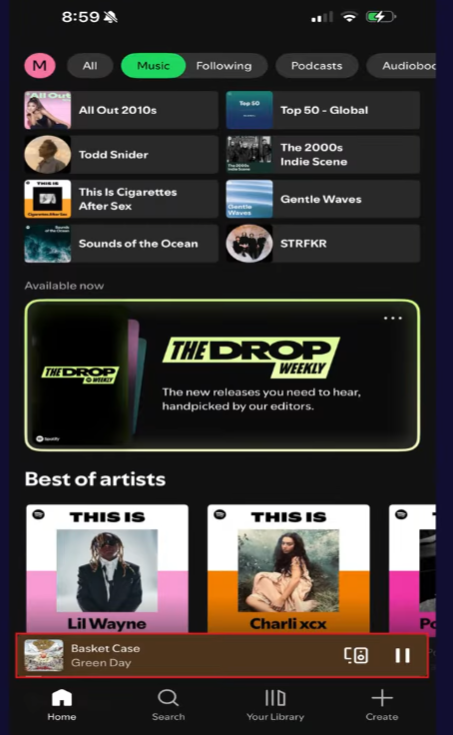
- Open Spotify
- Play any song
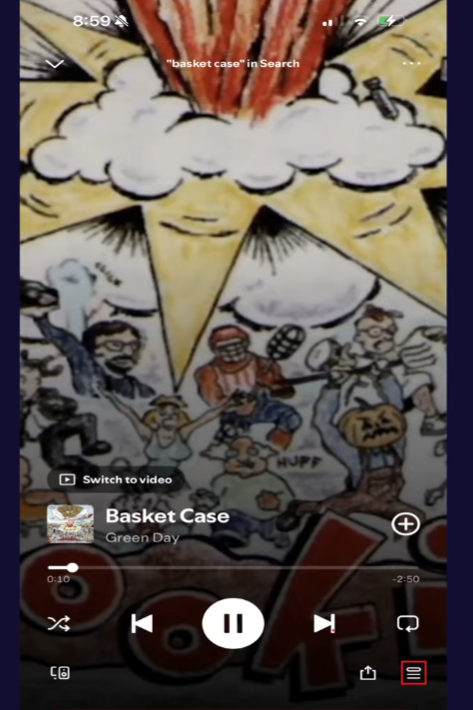
- Tap the Now Playing barat the bottom
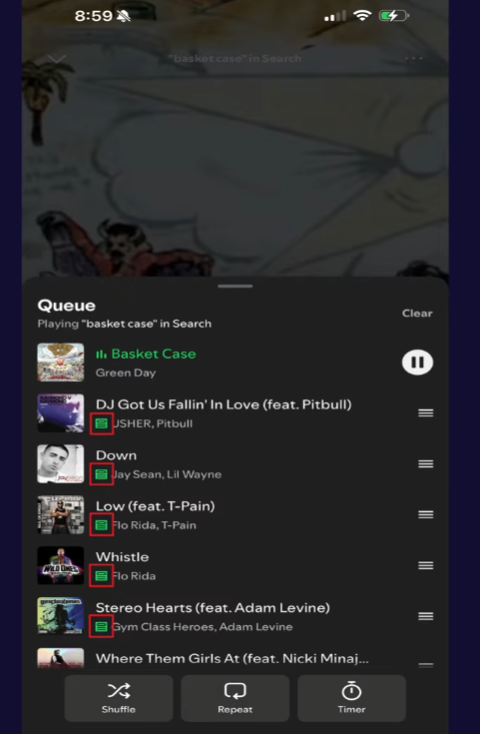
- Tap the Queue icon
- You will see your upcoming songs
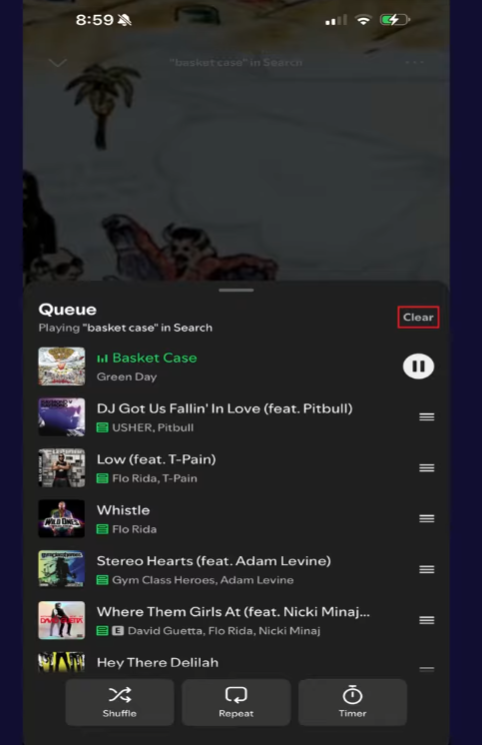
- Tap Clear Queue
If you don’t see a clear button, you can manually remove songs:
- Tap the circle next to a song
- Select multiple tracks
- Tap Remove
How to Clear Spotify Queue on Desktop
If you use Spotify on a computer, the steps are similar:
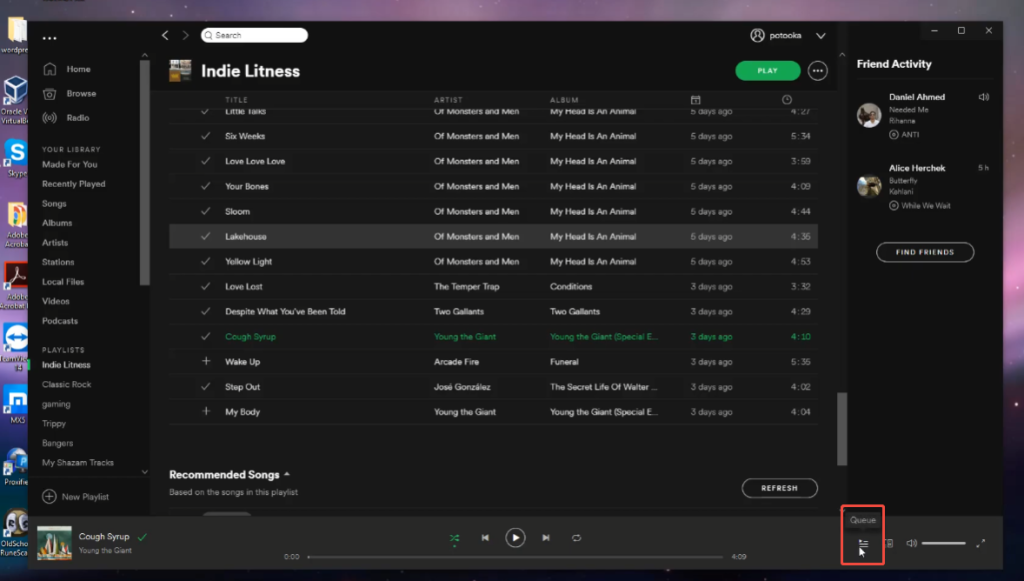
- Open Spotify
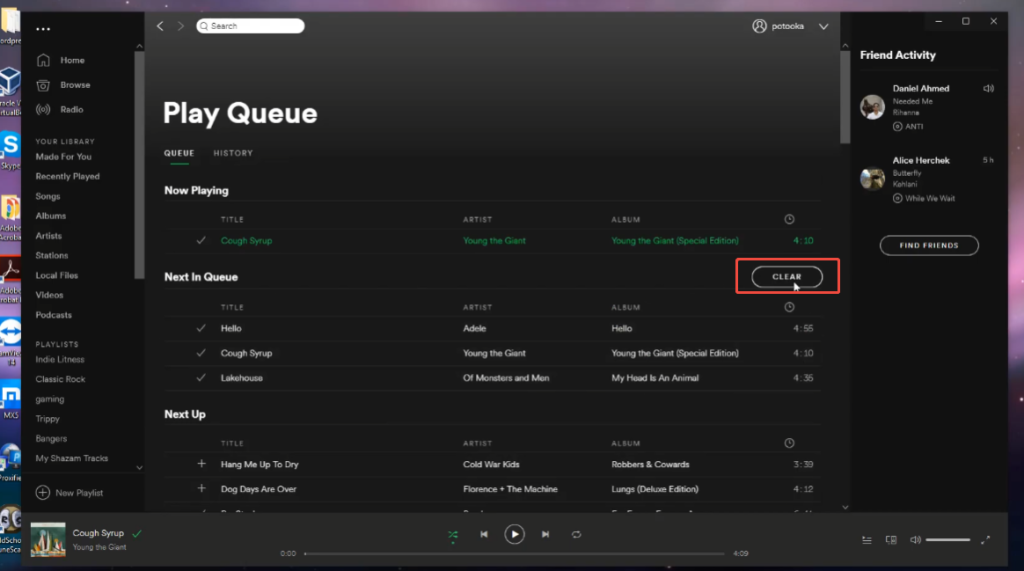
- Click the Queue icon on the right side
- View the list of upcoming songs
- Click Clear Queue or remove tracks manually
A desktop usually makes it easier to manage long queues because of the larger screen.
Why You May Want to Clear the Queue
Clearing the play queue can be helpful in several common situations, especially when you want a smoother listening experience.
You may have accidentally added too many songs, which often happens when you click “Add to play queue” multiple times or quickly browse new tracks, especially while exploring features in apps like Spotify Premium Mod APK; as a result, your playlist can become cluttered with songs that no longer match your current listening mood or needs.
Another reason is when your listening mood changes. For example, you might start by listening to soothing music, and then later want to listen to some faster-paced music. If your playlist is still full of soothing songs, clearing the queue can help you rearrange the playback order to better suit your current mood.
Sometimes, frequently skipping songs can cause the playback queue to become chaotic. Skipping a song does not remove it from the queue; it remains there and may be played later. Clearing the queue can remove these unwanted residual songs.
If you are using a shared device, you may also need to clear the playback queue. If a friend or family member adds a song, your playlist may contain music that you didn’t select. Clearing the queue gives you complete control over your playlist.
Another situation is when you want to restore the previous playback order. The play queue temporarily changes the order in which subsequent songs will play, so clearing the queue will restore your playlists or albums to their original play order.
Clearing the queue is very useful when you want to restart playback. It removes all tracks that are about to play, allowing you to rebuild your playback flow from scratch.
Things to Keep in Mind
Understanding how the playback queue works before clearing it can help avoid errors in subsequent operations.
Clearing the play queue will only remove manually added songs; it will not delete any playlists, favorite songs, or saved albums. Your music library will remain unchanged.
Even if the queue is cleared, the currently playing song will continue to play. This operation will only affect the songs that will play next, not the songs that are currently playing.
After clearing the queue, Spotify will restore your original playback source, such as a playlist, album, or radio station. If you started from a playlist, it will continue playing in either sequential or shuffle mode, depending on your settings.
It should also be noted that the playback queue is temporary and device-based. If you switch devices, the playback queue may not always remain the same, especially if you are not using Spotify Connect.
Finally, the operation of clearing the playback queue cannot be undone. Once you remove these songs, you’ll need to add them back if you want to listen to them again.
Tips to Manage Your Queue Better
Managing your playlists well can make your listening experience more enjoyable. Developing some simple habits can help you avoid playlists that are too long or cluttered.
Add only a small number of songs at a time, instead of adding a lot at once. This makes it easier to remember the song that will be played next. If you suddenly add ten or more songs, it becomes difficult to remember what’s in your playlist.
Check your playlist every now and then. Before adding a new song, open the playlist and take a quick look. If you find any songs you don’t want to listen to, delete them immediately and don’t leave them on the playlist.
Another useful tip is to use playlists when listening for extended periods. If you already know what kind of music you want to enjoy, playing a playlist is much more efficient than manually filling your queue with individual songs, and it also helps maintain a consistent mood without interruptions. This becomes especially helpful if you’re using features unlocked through Spotify Premium download 2026, where offline playlists and higher audio quality make long listening sessions smoother. Playlists are best suited for quick adjustments, too, such as adding a few songs at any time without disrupting the overall flow.
You can also rearrange the song order as needed. If your mood changes, you can move some songs to the top of the list instead of clearing it all. This saves time and maintains smooth music playback.
Finally, try to avoid mixing too many different styles of music in one playlist. Switching frequently between completely different music genres can ruin the listening experience. Maintaining a similar atmosphere or style will make your playlists sound more natural.
Queue vs Playlist: What’s the Difference?
| Feature | Queue | Playlist |
| Purpose | Temporary list | Saved music list |
| Duration | Short-term | Long-term |
| Editing | Quick add/remove | More structured |
| Best For | Instant control | Organized listening |
Understanding this difference helps you use both features better.
Final Thoughts
Learning how to clear your Spotify queue is simple but useful. It helps you stay in control of what plays next and keeps your listening smooth.
If your queue feels messy or too long, clearing it takes just a few seconds. With a few good habits, you can also avoid clutter and enjoy your music without interruptions.