If Spotify is taking up too much storage space, running slowly, or experiencing playback errors, clearing the cache is usually the quickest solution. If you’re searching for spotify clear cache iPhone steps, the process is simple and only removes temporary data. Clearing the cache will not delete your account, playlists, or saved songs; it will only delete temporary files stored by the app to speed up music loading.
This guide will explain what Spotify cache is, when you need to clear the cache, and how to safely clear the cache on Android, iPhone, Windows, and Mac.

What Is Spotify Cache?
Spotify cache is temporary data stored on your device designed to help the app run faster and smoother. Each time a song or playlist is opened, Spotify does not re-download the same information; instead, it saves certain files locally. This can reduce loading time and improve performance.
Why Does Spotify Use Cache?
When you stream music online, Spotify doesn’t load all the content from the network every time. It saves snippets of your recently played songs, along with album art and other app data. The next time you play the same song, Spotify can load it faster because part of the content is already stored on your device.
This also helps reduce data usage, especially if you frequently play the same song repeatedly.
When Should You Clear Spotify Cache?
Clearing Spotify cache is not something you need to do on a schedule. In most cases, the cache helps the app run faster. However, there are specific situations where clearing it makes sense.
1. When Spotify Feels Slow or Unresponsive
If an app opens slower than usual, music playback buffers even with a stable network connection, or scrolling feels choppy, it may be due to cache overload or minor corruption. In this case, you may need to clear Spotify cache Android to remove outdated temporary files. Clearing the cache can delete unnecessary stored data and allow the application to rebuild fresh files, which can generally improve performance and restore smooth playback.
2. When You Experience Playback Errors
If you see repeated error messages, songs won’t start, or tracks stop midway without a network issue, cached files might be damaged. This sometimes happens after an app update. Clearing the cache forces Spotify to reload clean streaming data.
3. When Storage Space Is Running Low
Spotify stores a lot of temporary audio data, especially if you use it frequently. On some devices, the cache can grow to several GB. If your phone or computer is about to fill up its storage, clearing Spotify’s cache is a quick way to free up space without deleting your music library.
4. After Major App Updates
Occasionally, after installing a new version of Spotify, the app may behave strangely, like unexpected crashes, missing artwork, or slow loading. Old cache files may conflict with new app components. Clearing the cache helps reset temporary data while keeping your account intact.
5. When Downloads or Syncing Act Abnormally
If offline downloads fail to complete, disappear, or fail to sync across different devices, clearing the cache can resolve background data conflicts. These are common troubleshooting steps before reinstalling an application.
How to Clear Spotify Cache on Android
Method 1: From Inside Spotify
- Open Spotify
- Tap your profile icon
- Go to Settings and privacy
- Tap Data-saving and offline
- Select Clear cache
- Confirm
This removes only temporary files. Your downloads stay intact.

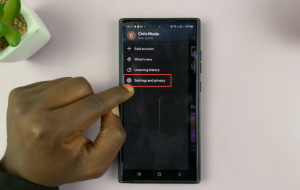
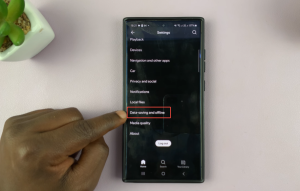
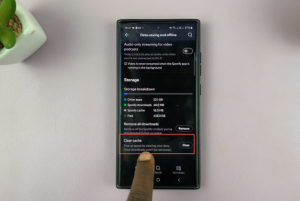
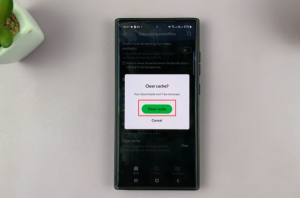
Method 2: Through Android System Settings
If the app is not responding:
- Open Settings
- Tap Apps
- Select Spotify
- Tap Storage
- Choose Clear Cache
Do not tap “Clear Data” unless you want to log out and reset the app completely.
How to Clear Spotify Cache on iOS
Spotify on iOS does not allow cache clearing through system settings. Use the in-app method:
- Open Spotify
- Tap your profile icon
- Go to Settings and privacy
- Tap Storage
- Select Clear cache
- Confirm
If Spotify is still malfunctioning, you may need to delete and reinstall the app. This removes cache and downloaded music but keeps your account data.
Does Clearing Cache Delete Downloads?
This is one of the most common concerns users have before clicking “Clear Cache”. The answer is: Clearing the cache will not delete the songs you downloaded. But understanding the difference between caching and downloading will help you know exactly what’s going on.
Cache and Downloads Are Not the Same
Spotify stores two different types of data:
Cache – Temporary files created while streaming music. These include small parts of songs, album artwork, and performance data.
Downloads – Full encrypted files saved for offline listening when you tap “Download” on a playlist, album, or podcast.
When clearing the cache, Spotify only deletes temporary streaming files. The playlists and albums you downloaded can still be used offline.
What Happens After Clearing Cache?
After clearing the cache:
Your downloaded music stays on your device
You remain logged into your account
Your playlists and library are unchanged
Spotify may load slightly slower the first time you play a song
The app will gradually rebuild the cache as you continue listening.
How Much Space Can You Free?
How much space you can free up depends entirely on how you use Spotify. For example, the size of the Spotify cache iOS devices store will vary based on your listening habits. If you mainly listen occasionally via Wi-Fi, the cache may only take up a few hundred megabytes. However, if you listen to it every day, frequently skip songs, or stream using mobile data, the cache can quietly grow to several GB over time.
Light Users: A Few Hundred MB
If you mainly listen to a few playlists and don’t often explore new music, Spotify doesn’t need to store too much temporary data. In this case, clearing the cache can free up 200MB to 500MB of space. While you can feel the difference, it’s not significant.
Daily Listeners: 1GB–3GB Is Common
For users who use streaming services daily, especially those who frequently browse new songs, podcasts, and various playlists, which means the cache grows even faster. Album covers, song clips, and playback data will continuously accumulate in the background. It’s common for cache to accumulate to 1GB to 3GB of space if it’s not cleared for several months.
Heavy Streaming or Limited Storage Devices: 3GB+
If you:
Frequently stream on mobile data
Skip through many songs
Listen to long podcasts
Use Spotify for hours every day
The cache can exceed 3GB or more. On devices with 64GB or 128GB storage, this can noticeably impact available space.
Is It Safe to Clear Spotify Cache?
Yes, clearing the Spotify cache is safe. It only deletes temporary files stored on your device that help speed up app loading. These files are not important data. Your account, playlists, saved albums, liked songs, and subscription status will not be affected.
Cached data is different from personal data. Spotify stores your real information, such as playlists and listening history, on its servers. When you clear cache Spotify mobile, you only delete local temporary files, such as album art, audio clips, and playback data. After reopening the app, Spotify will re-download the required content.
It is important to understand the difference between “clear cache” and “clear data” or completely deleting the app. Clearing the cache only deletes temporary files. Clearing data or reinstalling the app completely resets the app. This means you will be logged out, and offline downloads will be deleted, but your account content will still be safely stored in the cloud.
Clearing the cache poses no security risks. When you clear Spotify cache, it will not leak your account information, delete payment information, or affect your Premium membership. In fact, clearing the cache can sometimes fix minor glitches caused by corrupted temporary files after an update.
The only noticeable impact is that Spotify may load slightly slower when opening certain songs or playlists for the first time after clearing the cache. This is normal; the application rebuilds new temporary files in the background.
Clearing the Spotify cache is a safe and effective troubleshooting step. It won’t harm your account or saved music, and it can improve performance when the application malfunctions.
Everyday Tips for Using Spotify Smoothly
You don’t need to clear Spotify’s cache on a regular schedule. In most cases, the app manages storage well on its own. Think of cache clearing as something you do only when there’s a problem like lagging, playback errors, or low storage space.
If you stream music daily, it’s normal for Spotify to use more storage over time, especially as the Spotify app cache builds up in the background. Instead of clearing cache frequently, focus on keeping the app updated and making sure your device has enough free space.
If Spotify starts acting strangely, try this order:
- Restart the app
- Check your internet connection
- Update the app
- Clear the cache
- Reinstall only if needed
Most issues are fixed within the first few steps.
Keeping things simple usually works best. Clear the cache when necessary, but otherwise just enjoy your music without worrying too much about background files.