Have you ever wanted to listen to a guilty pleasure playlist without it affecting your recommendations? Maybe you’re preparing a surprise party, sharing your account with family, or simply don’t want your followers to see what you’re playing. If so, Spotify Incognito Mode, officially called Private Session, is exactly what you need.
Let me walk you through everything: what it does, how to turn it on, and the gotchas you should know.
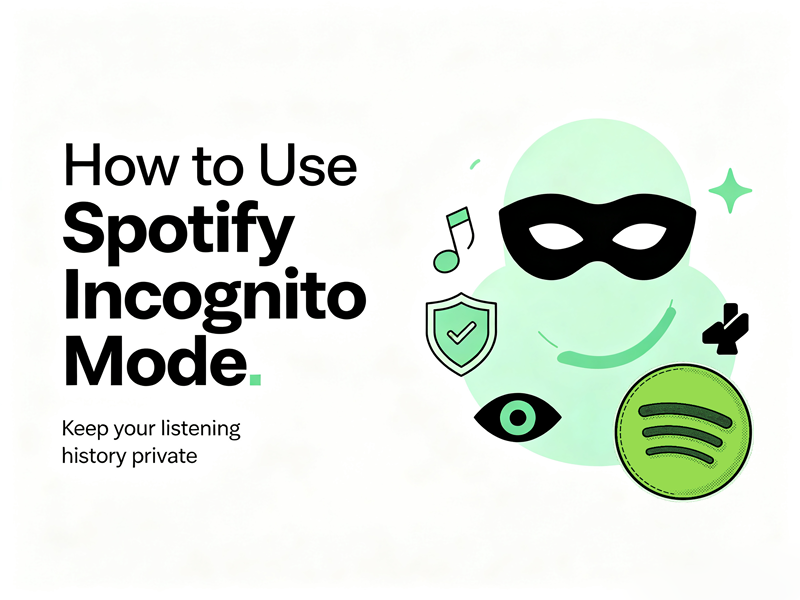
What Is Spotify Incognito Mode
Although many people call it Spotify Incognito Mode, the official feature is called Private Session.
When you enable Private Session, Spotify temporarily stops sharing your listening activity with anyone else. Private Session Spotify meaning:
- Your friends won’t see what you’re playing. The “Friend Activity” sidebar and the “Friends” section go dark for you.
- Your recently played list on your profile stops updating. That embarrassing 2 AM deep dive into polka covers stays hidden.
- Your personal recommendations pause. Songs you listen to during the session won’t influence your Discover Weekly, Release Radar, or Daily Mixes.
- Nothing you play counts toward your Spotify Wrapped. If you’re binging holiday music in July, Private Session keeps your Wrapped pure.
But here’s the important part: the streams still count for the artist. So if you’re trying to boost a friend’s indie band, they still get the royalty – your listening just won’t mess with your own algorithm.
How to Turn On Spotify Incognito Mode
On iPhone / Android
- Tap your profile picture in the top‑left corner of the Home screen.
- Tap Settings and privacy.
- Tap Privacy and social.
- Under Listening activity, toggle Private Session to ON.
You’ll see a small padlock icon or the words “Private Session” appear near your profile picture. That’s your confirmation.
On Desktop (Windows / Mac App)
- Click your profile picture in the top‑right corner.
- Click Private Session.
A padlock icon will show up next to your avatar. Click it again to turn it off.
Notice: Doesn’t work on the web player – you must use the Spotify app.
How Long Does Incognito Mode Spotify Last?
Private Session automatically turns off after 6 hours. It also ends whenever you restart the Spotify app. So if you close the app and reopen it, you’ll be back in public mode.
To turn it off manually, just follow the same steps and toggle it off.
Private Session Spotify Meaning: Common Misconceptions
- “My plays won’t count at all”: Wrong – the artist still gets the play. Only your activity feed and algorithm are affected.
- “I’m completely anonymous”: Nope – Spotify still knows who you are. It just stops broadcasting your activity.
- “It works forever once I turn it on”: No – it expires after 6 hours or when you restart the app.
- “It hides my IP address or location”: Not even close – this isn’t a VPN. It’s purely about social and algorithmic privacy.
A Few Extra Tips
- Private Session is account‑wide. Turn it on from your phone, and it’s active on your desktop too. Same goes for turning it off.
- It doesn’t affect collaborative playlists. Other people in a collaborative playlist can still see what you add – Private Session only hides your listening activity.
- If you share a family plan, Private Session doesn’t hide anything from other family members in terms of billing or account details – it only affects social features.
Alternative Ways to Keep Your Spotify Activity Private
Method 1: Turn Off Listening Activity Sharing
If your main concern is that friends or followers can see what you’re playing, you can change your social settings instead of relying only on Private Session.
Open Spotify’s Settings, then go to Social or Privacy. Here, you can disable options such as sharing your listening activity with followers.
Method 2: Start a New Account for Specific Uses
If you regularly listen to completely different types of audio, creating another Spotify account may be worth considering.
While this isn’t necessary for most people, it’s one of the most effective ways to keep recommendations separate.
Method 3: Manage Your Listening History
Spotify occasionally allows you to remove items from certain recommendation features or adjust your listening preferences.
Although this won’t erase all listening history, reviewing your library from time to time can help improve future recommendations.
FAQ with Spotify Incognito
Q: Does Spotify Premium affect private sessions?
A: No. Private Session is available to both Free and Premium users. The privacy feature behaves the same regardless of your subscription.
Q: Is Spotify Incognito Mode Safe?
A: Yes. Private Session is an official Spotify feature, so there’s no need to install third-party apps or browser extensions to use it.
Q: Does Private Session work while using Spotify Connect?
A: Yes, but remember that Spotify Connect simply controls playback on another compatible device. If Private Session is enabled, your listening activity is still treated as private in the ways Spotify intends, though playback is naturally visible on the device you’re controlling.
Q: Can I use Spotify Incognito Mode while downloading music offline?
A: Yes. If you’re a Premium subscriber, you can download songs for offline listening and still enable Private Session when you play them. The two features work independently.
Final Thoughts
Although Private Session doesn’t provide complete anonymity, it does a great job of keeping your listening activity more private and reducing the impact of temporary music choices on your recommendations.
In my opinion, Private Session is one of Spotify’s most underrated privacy features. It doesn’t promise perfect invisibility, but it solves the problems most listeners actually face. If you value personalized recommendations and occasionally want to keep your music habits to yourself, it’s well worth making Private Session part of your regular Spotify routine.