Spotify Codes are a quick way to share music without copying links or searching long titles. You can scan a code to open a song, album, playlist, artist profile, or even a podcast in seconds. Once you know where to look, the process is simple and works on most devices.
What a Spotify Code Is
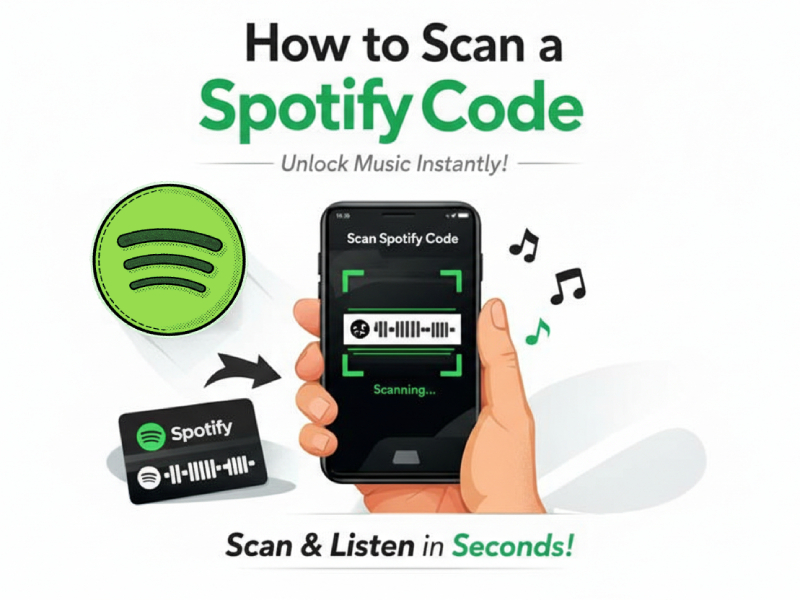
Spotify Codes are visual shortcuts that provide direct links to content within Spotify. They look like a series of vertical sound wave lines, located below the cover art of a song, album, playlist, artist, or podcast. Each piece of code is unique and can only be used within the Spotify app.
Unlike regular links, Spotify codes are designed for quick, face-to-face, or visual sharing. This makes them an easy solution for people who want to learn how to use Spotify code in everyday situations. You don’t need to type in a name, remember a title, or worry about spelling mistakes. Simply scan the code to jump directly to the content the creator wants to share, without any additional steps.
Spotify codes are automatically generated by the app. The code appears on the share screen whenever you open the options menu for a song or playlist. This allows artists, brands, and users to easily share music visually on social media, posters, and print materials.
Another important detail is that Spotify codes are static. Once generated, they always point to the same content. Even if the cover art changes, the code remains valid. This makes them reliable for long-term use, especially in marketing or offline promotional campaigns.
Simply put, Spotify Code is Spotify’s own scanning system that converts music into content that you can share and open instantly, using only your phone’s camera and the app.
Make Sure Your App Is Ready
Before attempting to scan the Spotify code, be sure to check that your Spotify app is set up correctly. Spotify’s code scanning feature is only available in the official Spotify mobile app, so using an outdated version may cause the scanner to be unusable or malfunction.
Please go to the app store and install all available updates. Newer versions of Spotify typically improve scanning accuracy and fix camera-related issues. Keeping your app updated also ensures better compatibility with your phone’s camera system.
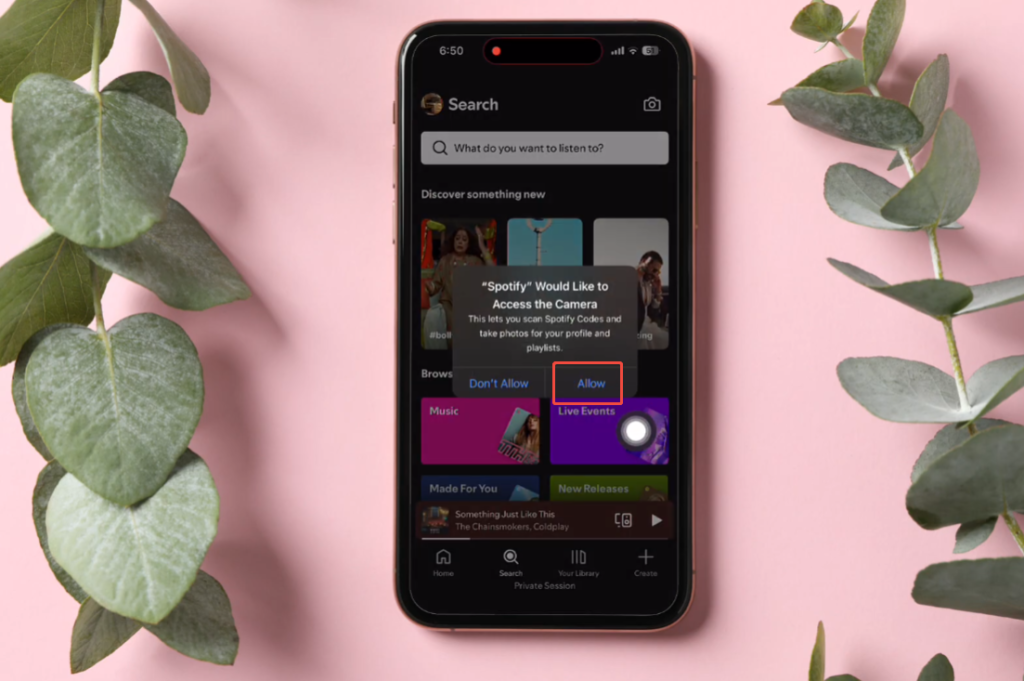
Next, check your device permissions. Spotify needs access to your camera to scan codes. If camera access is disabled, the scanner will not be able to open. You can resolve this by going to your phone’s settings, finding Spotify, and granting it camera permissions.
A stable network connection is also essential. The scan itself uses the camera, and Spotify needs to load the content associated with the code. A slow or unstable network connection may cause the scan to become unresponsive or fail to open results.
Finally, close any other apps that might be using your camera in the background. Some camera or social media apps may interfere with camera access. Restarting Spotify or your phone can quickly resolve these issues and get the scanning function working smoothly again.
How to Scan a Spotify Code on Your Phone
Scanning Spotify codes on your phone takes only seconds, provided you know how. Everything is done within the Spotify mobile app; no additional software is required.
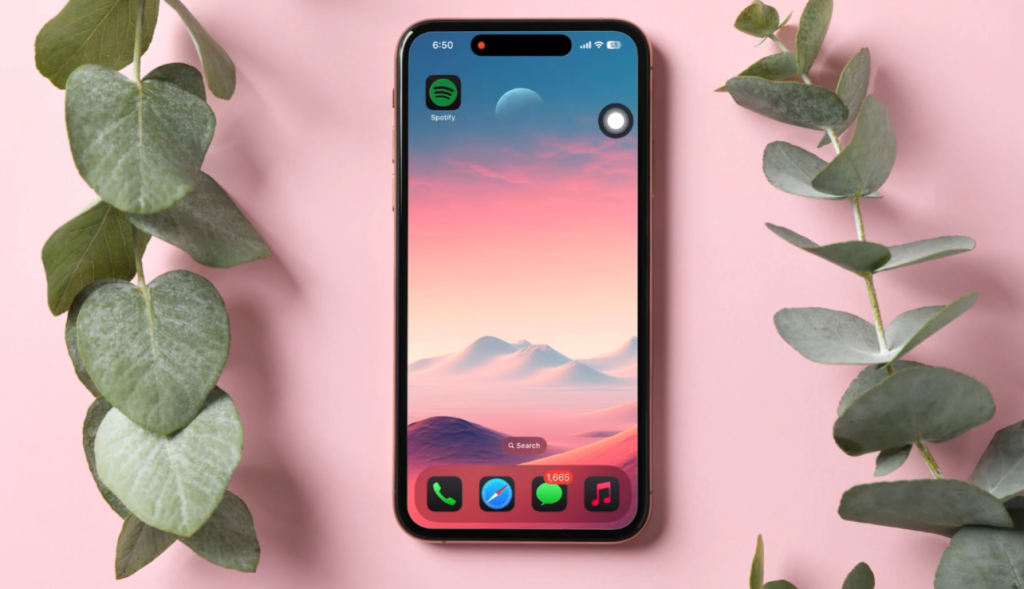
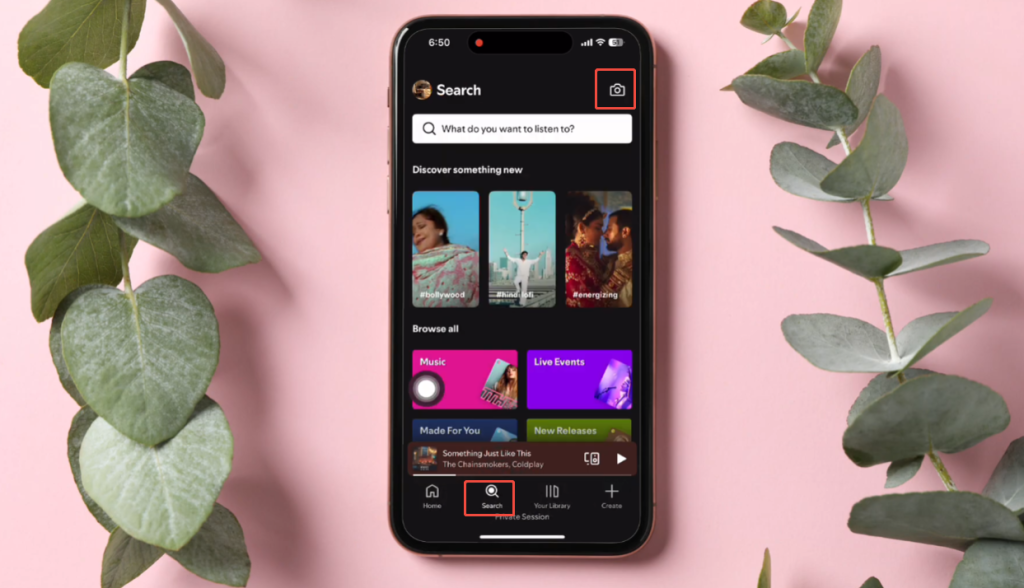
First, unlock your phone and open the Spotify app. Make sure you’re logged into your account. On the home screen, tap the “Search” tab at the bottom of the app. A small camera icon will appear at the top of the screen. Click this icon to open the Spotify scanner.
Once the camera is on, point your phone at the Spotify code you want to scan. Keep the code centered on the screen and avoid moving your phone quickly. The app will automatically recognize the code and open the associated song, album, playlist, or podcast without any further action.
Lighting conditions are very important. Try to scan in a bright environment to avoid shadows or reflections on the code. If you are scanning from another phone screen, slightly lower the screen brightness to reduce glare and improve scanning accuracy.
No need to tap the screen or press any buttons during the scanning process. Spotify will redirect immediately after detecting the QR code. If there is still no response after a few seconds, please adjust the distance between your phone and the QR code or reposition your phone until the scanner can read it clearly.
This method works on Android and iOS devices and supports scanning printed QR codes, screens, and shared images.
Scanning a Code From a Screenshot or Image
Even if the Spotify code isn’t printed out or displayed on other devices, you can easily scan it. If the Spotify code is saved on your phone as a screenshot or image, you can scan it directly from your photo library.
First, open the Spotify app and go to the “Search” tab. Tap the camera icon at the top of the screen. Instead of pointing your camera at the code, find the option that allows you to select images from your photos. Choose a screenshot or image that includes the Spotify code.
For best results, ensure the code is fully visible in the image. Spotify may not be able to recognize screenshots if they are cropped too tightly or if the code is truncated. A clear, high-contrast image will work better than a blurry or compressed one.
If the image contains additional text or background elements, it is usually acceptable as long as the code itself is clear and centered. No image editing or filtering is required before scanning.
This method is especially useful when friends send Spotify codes via instant messaging apps, social media, or email. It also works well if you save the code for later use and want to open it at other times without having to search for it manually.
Common Issues and How to Fix Them
Sometimes Spotify QR codes may fail to scan on the first try. Most problems are quite simple; once you know which aspects to check, they can be easily solved.
Lighting is the most common problem. If the environment is too dark or too bright, the camera may have difficulty reading the QR code. Try shooting in a place with soft and even lighting. Avoid direct reflections from the screen or smooth paper.
Image quality is also important. Blurry screenshots, compressed images, or cropped QR codes can all cause scan failures. Please ensure that the entire QR code is clearly visible and not stretched. If the QR code was sent via an instant messaging app, request the original image, not a compressed version.
Camera permissions may prevent scanning. The scanner will not work if Spotify cannot access your camera. Check your phone settings to make sure Spotify has been allowed access to your camera. Restarting the app after changing permissions usually helps.
Distance and angle can affect recognition. Holding the phone too close or at too much angle can cause the scanner to fail to recognize the code. For better results, keep the phone stable, move the lens slightly away, and keep it parallel to the QR code.
App or system malfunctions can also cause scan failures. If the scanning function suddenly stops working, especially after using a spotify code download image from another device or website, please close Spotify completely and then reopen it. Updating the app or restarting your phone may resolve temporary issues.
Additionally, some older devices may scan more slowly. In such cases, scanning with saved images is usually more effective than using a live camera.
Where Scanning Works Best
The best scans of Spotify code are those that are clear, flat, and easy for a camera to read. Electronic screens typically offer the highest scan success rates, especially when the image is clear and uncompressed. Scanning directly from other phone, tablet, or computer screens is usually faster than scanning from printed paper.
If you are scanning printed Spotify codes, ensure the surface is flat and free of warps. Wrinkles, creases, or curves in the paper will distort the code pattern and slow down recognition. Matte paper works better than glossy paper because it reduces glare.
Light is crucial to scanning accuracy. Natural light or soft indoor lighting helps the camera focus. Avoid strong reflections, shadows, or direct sunlight on the code. If the code appears blurry or too dark on the screen, please increase the brightness slightly.
Background contrast is also important. Spotify codes stand out better against a clean, simple background. Complex patterns or similar colors following the code may interfere with the scanner. Leaving some space around the code can help improve the recognition rate.
Finally, please keep your phone stable and maintain a proper distance from the scanner. Too close a distance will result in a blurry image, while too far a distance will make the barcode too small to be recognized. Keeping your hand steady and your line of sight clear usually results in a successful scan immediately.
Recommended Tips for Scanning Spotify Codes
For best results, always use the official Spotify mobile app to scan Spotify codes and keep the app updated. Newer versions of the application typically improve scanning speed and accuracy.
Scan on electronic screens whenever possible, rather than on printed materials. The screen edges are sharper and the contrast is higher, which helps the camera recognize codes faster.
Ensure that the Spotify code is fully visible and has not been cut off. Leave some space around the code so the scanner can detect the complete pattern. Avoid over-zooming, as this will result in a blurry image.
Use steady lighting and avoid glare. Soft indoor light is better than direct sunlight or strong reflected light. If using another phone to scan, tilt the screen slightly to reduce glare.
Finally, wait a second or two. Keep your phone still and allow the scanner to complete the scan. Being too hasty or moving the camera too quickly are the most common reasons for scan failure.
Final Summary
For the best experience, keep your Spotify app updated and use good lighting when scanning. If you share Spotify Codes often, sending a clean screenshot makes scanning easier for others.
Scanning a Spotify Code is a fast and reliable way to open music without searching or sharing links. With just a few taps inside the Spotify app, you can access songs, playlists, and podcasts instantly and keep music sharing simple and smooth.