Do you want to listen to music with friends who live far away, or host a small music sharing session with a group of friends? Then try the Jam feature in Spotify Premium Free!
Let jam de Spotify connect you and your friends to enjoy sharing music.

What Is Spotify Jam?
Spotify Jam is a real-time collaborative listening feature that lets multiple users (up to 32) curate a shared music queue simultaneously. Whether you’re hosting a party, studying with friends, or syncing tunes remotely, Jam syncs playback across all devices, allowing everyone to add songs, vote on tracks, and see who contributed what.
As a shared, interactive playlist, your friends can add songs, see who added which track, and control playback. It truly enables interactive music playback.
Spotify Jam Key Features:
- Shared Queue: Friends who participated in Spotify Premium Free Jam can add, remove, or reorder songs in real time. You can share your favorite music.
- Group Recommendations: Spotify will recommend similar songs based on the style of the playlists you both added to Jam.
- Host Controls: The creator can manage permissions, for example, volume control and skipping tracks.
- Cross-Platform: Whether your friends are using a phone, computer, or even a car system (Android Auto/CarPlay) and smart speakers (Chromecast, Amazon Cast), they can join the Spotify Jam.
- Remote & In-Person: Friends who are nearby can join via Bluetooth, while friends who are farther away can join the Spotify Jam via a shared link or QR code.
What’s Start A Jam On Spotify?
Prerequisite: Only Spotify Premium subscribers can start a Jam. But both free and premium users can join. If you are using Spotify Premium APK 1.16, you can use the Spotify Jam feature for free.
Next, Steps to “What is create a jam on Spotify?”
- On Mobile (Android/iOS):
- Play a song or playlist → Tap the “Connect Device” icon (bottom left) → Select “Start a Jam”.
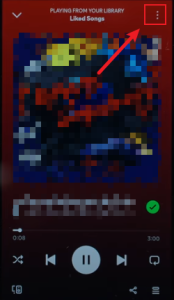
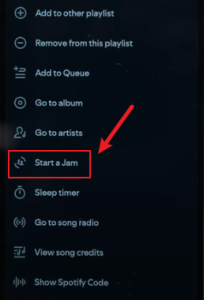
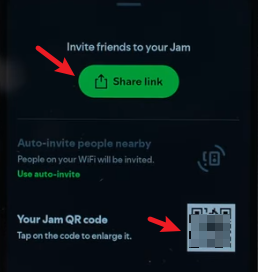
- Tap “Invite” → Share a link, QR code, or tap phones together. Note that Bluetooth is required for proximity invites.
- On Desktop:
Right-click a song/playlist → Click “Start a Jam” → Share the invite link or QR code.
- On Smart Speakers/TVs:
Connect to a speaker → Spotify may auto-start a Jam. Navigate to the “Queue” section → Select “Jam” → Share QR code.
Inviting Participants:
- Link/QR Code: You can share it with remote friends, but remote listeners need a premium membership unless they are using Spotify Premium APK 1.16 like you.
- Bluetooth Tap: Bring phones close together; both must have Bluetooth on.
- Wi-Fi Auto-Prompt: Users on the same network may receive automatic invites.
How to Use Spotify Jam
- Add Songs: Tap “Add Songs” in the Jam queue → Browse recommendations or search → Tap + to queue.
- Remove Songs: Hosts can delete tracks; participants need host permission.
Host Controls:
- Toggle “Let guests change volume” (works only on Chromecast/Amazon Cast).
- Enable/disable “Let others change what’s playing” for skip/pause permissions.
- Remove participants via the session details menu.
Leave/End Jam:
- Participants: Tap “Leave Jam”.
- Host: Tap “End Jam” ends session for all.
Why Use Spotify Jam?
- Perfect for Parties: everyone adds songs democratically.
- Remote Bonding: Sync music during video calls or virtual hangouts.
- Discover New Music: Group recommendations blend everyone’s tastes.
- Seamless Integration: Works with playlists like Blend for personalized queues.
FAQs:
Q: Can free users host a Jam?
A: No, only Premium users can start Jams. Free users can join in-person sessions. However, if you use Spotify Premium Cracked, you can start a jam de Spotify and join a Spotify Jam at any time.
Q: Why can’t I skip songs?
A: The host may have disabled “Let others change what’s playing”.
Q: Can I use Jam without Wi-Fi?
A: No, an internet connection is required.
Q: What to do if there is a connection error?
A: You can try switching between Wi-Fi and mobile data, check if your speakers support shared volume controls, and finally, try restarting the app or reinstalling Spotify.
Want to embark on a shared musical journey?
Spotify Jam transforms solo listening into a shared musical experience. Whether you’re curating a road trip playlist or reporting on a mini-concert, it’s the perfect choice.