Spotify is the go-to music streaming platform for millions worldwide, but knowing how to log out from Spotify is just as important as enjoying your favorite playlists. Whether you’re switching accounts, using a shared device, or simply prioritizing your account security, logging out properly ensures your personal music preferences and data stay protected.
In this 2026 updated tutorial, we’ll explain how to log out of Spotify on Android, iPhone, desktop, web, and TV, and also address common concerns about Spotify Premium APK 2026 and Spotify Lite APK Mod.
Why You Should Log Out of Spotify
Logging out of Spotify can help you:
- Protect your account from unauthorized access
- Switch between multiple accounts
- Fix playback and sync errors
- Manage device connections
- Improve privacy on shared devices
If you’ve logged into a public or shared device, it’s especially important to log out remotely.
How to Log Out of Spotify on Android
Android users often access Spotify on the go, so knowing how to log out of Spotify on Android is essential for account safety—especially if you share your phone with family or friends. Follow these easy steps to sign out in seconds:
- Open the Spotify app on your Android device.
- Tap on your profile picture or avatar located in the top-right corner of the screen. This will openyour account menu.
- Scroll down the menu until you find the “Settings”
- Scroll down and tap Log Out.
- Confirm your action.
Pro tip: If you’re using a modified version like Spotify Lite APK Mod, the log-out process is nearly identical—just look for the profile and settings icons, as the simplified interface still keeps core account functions accessible.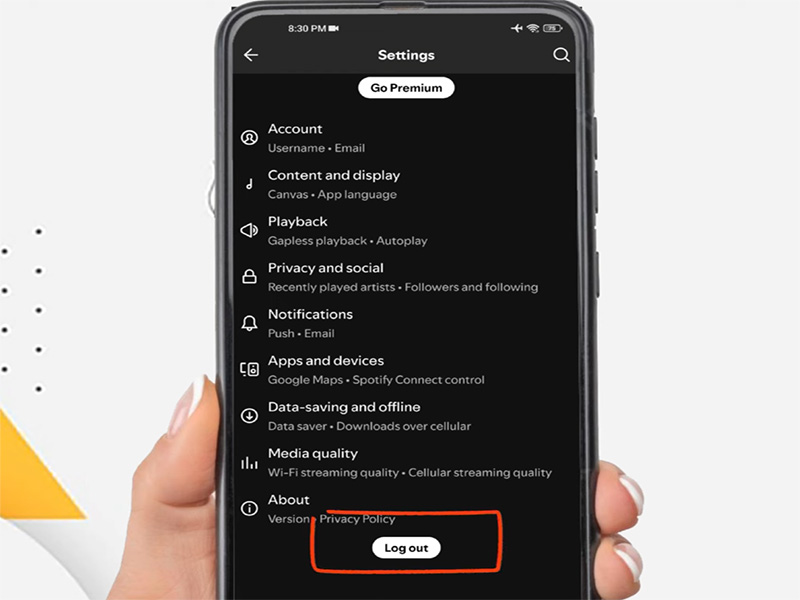
How to Log Out of Spotify on iPhone
- Open Spotify.
- Tap your profile picture.
- Go to Settings.
- Scroll down and tap Log Out.
The process is identical to Android, making it easy to manage across devices.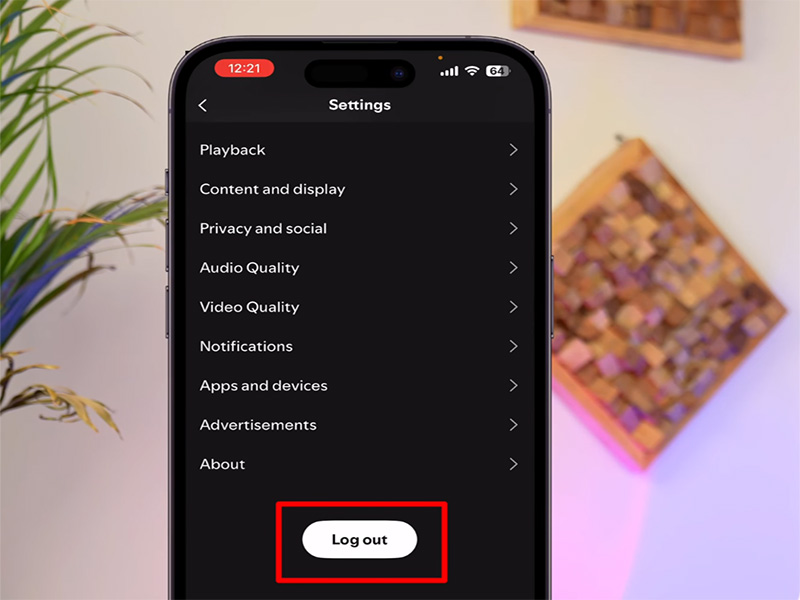
How to Log Out of Spotify on Desktop
Using the Desktop App:
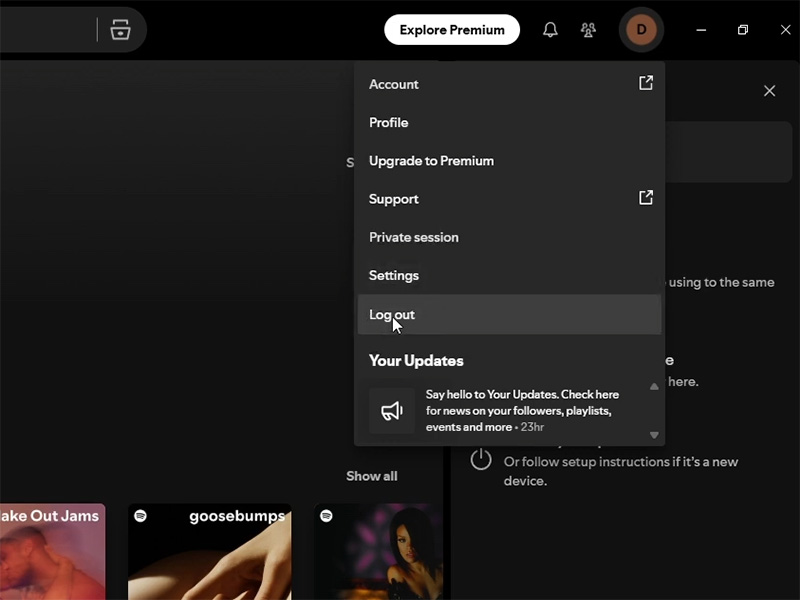
- Open Spotify on your computer.
- Click your profile name at the top-right.
- Select Log Out.
Using Spotify Web Player:
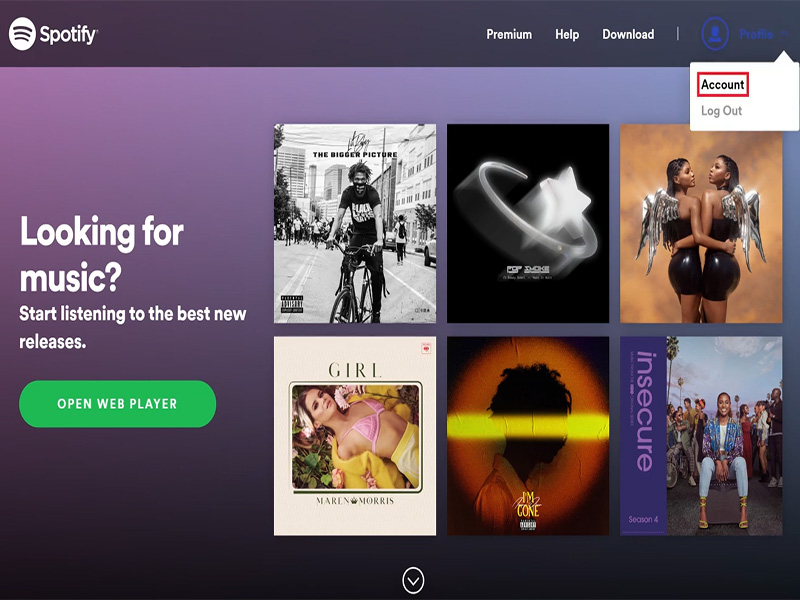
- Visit open.spotify.com.
- Click your profile icon.
- Click Log Out.
Log Out Spotify TV: How to Sign Out on Smart TVs
Streaming Spotify on your smart TV is a great way to enjoy music with friends, but forgetting to log out can leave your account vulnerable. Log out Spotify TV with these straightforward steps, which work for most smart TV brands:
Method 1: Direct Logout on TV
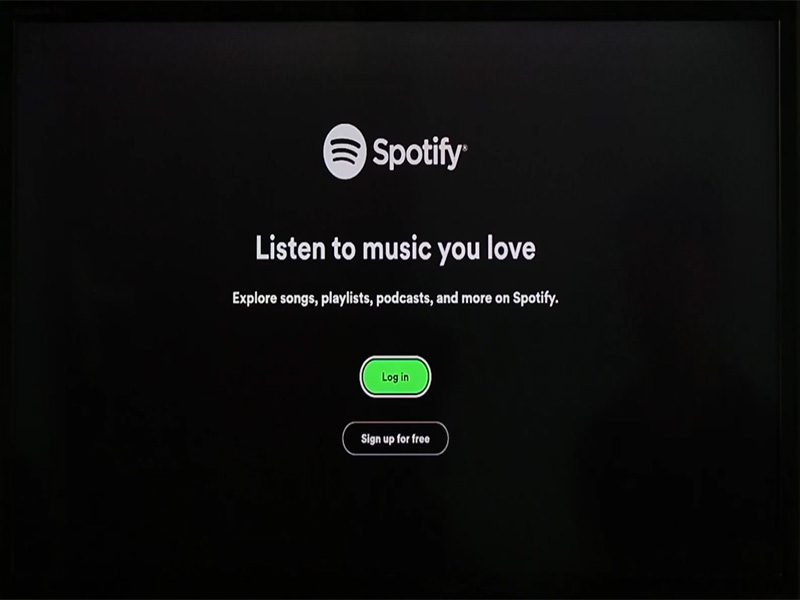
- Open Spotify on your TV.
- Go to Settings.
- Scroll down and select Log Out.
Method 2: Remote Logout
- Visit Spotify Account Page on your phone or computer.
- Log into your account.
- Scroll down and click Sign out everywhere.
If you’re having trouble finding the log-out option, restart the Spotify app on your TV or check your TV’s app settings for additional account controls.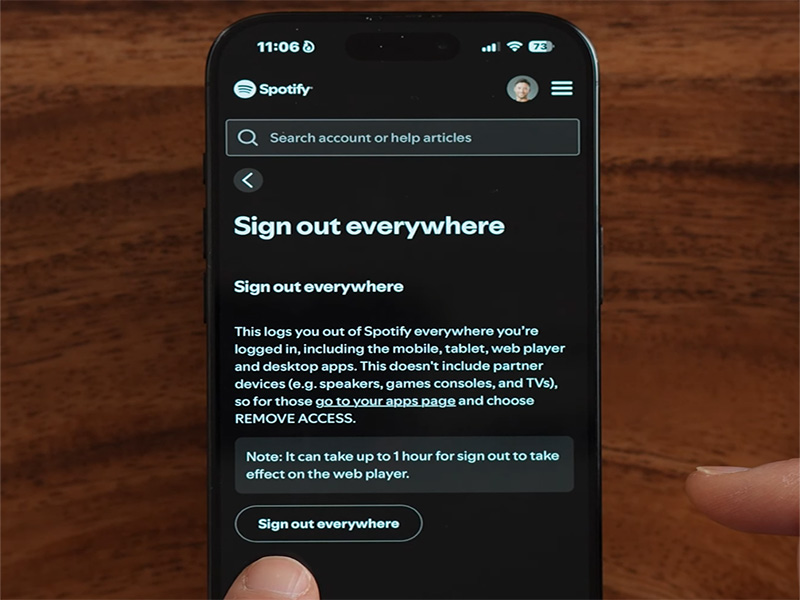
How to Log Out of Spotify Everywhere at Once
If you suspect suspicious activity or simply want a fresh login:
- Go to Spotify’s official website.
- Log in to your account.
- Click Account → Sign out everywhere.
This is the most secure way to disconnect all devices instantly.
Spotify Premium APK 2026 & Spotify Lite APK Mod: What You Need to Know
While logging out is crucial for account security, many users also explore alternative Spotify versions to enhance their experience. Two popular options in 2026 are Spotify Premium APK 2026 and Spotify Lite APK Mod—let’s break down what they are and how they relate to account management.
Spotify Premium APK 2026 is a modified version of the official Spotify app that claims to unlock premium features without a paid subscription. If you do use Spotify Premium APK 2026, follow the same log-out steps as the official app to protect your account.
Spotify Lite APK Mod is a lightweight, modified version of Spotify Lite—designed for devices with limited storage or slower internet connections. It retains core music streaming features but simplifies the interface and reduces data usage. Like the official Spotify Lite, logging out of Spotify Lite APK Mod is done through the profile and settings menu, just like the standard Android app. Keep in mind that modified apps may not receive official updates, so always verify the source before downloading.
Common Issues When Logging Out of Spotify
1. Logout Button Missing
Try:
- Updating the app
- Clearing cache
- Reinstalling Spotify
2. Spotify Keeps Logging Back In
This usually happens when:
- Your Google or Facebook account is auto-connected.
- Your browser saved login credentials.
3. Can’t Log Out from TV
Use the Sign out everywhere option via web browser.
Final Thoughts
Learning how to log out from Spotify is essential for maintaining privacy, improving performance, and managing your devices. Whether you’re using Android, desktop, smart TVs, or modified versions like Spotify Premium APK 2026 or Spotify Lite APK Mod, these steps ensure your account stays secure.
If you regularly use shared devices or public networks, make it a habit to log out and protect your streaming experience.