Your Spotify username is part of your identity on the platform, especially when sharing playlists, collaborating with friends, or using Spotify social features. Many users search for how to change Spotify username, but the process can be confusing. This guide explains whether a Spotify username change is possible, how to update Spotify username, and how to rename Spotify account details correctly.
Can You Change Your Spotify Username?
The short answer: You cannot directly change your Spotify username if it was automatically generated by Spotify.
Spotify assigns a unique username when you first create your account. This username acts as a permanent internal ID and cannot be edited manually.
However, there are still ways to rename Spotify account details that appear publicly, such as:
- Display name
- Profile name
- Connected social names
These changes effectively give you a new public identity without altering your core username.
Difference Between Spotify Username and Display Name
Many people confuse these two:
- Spotify Username: A unique, permanent ID (cannot be changed)
- Spotify Display Name: The public name shown on your profile (can be changed)
If your goal is to update Spotify username so others see a different name, changing your display name is the correct solution.
How to Change Spotify Display Name
This is the official way to rename Spotify account publicly.
On Mobile (Android & iOS)
- Open the Spotify app
- Tap your profile picture
- Tap View Profile
- Select Edit Profile
- Change your display name
- Tap Save
Your new name will appear instantly.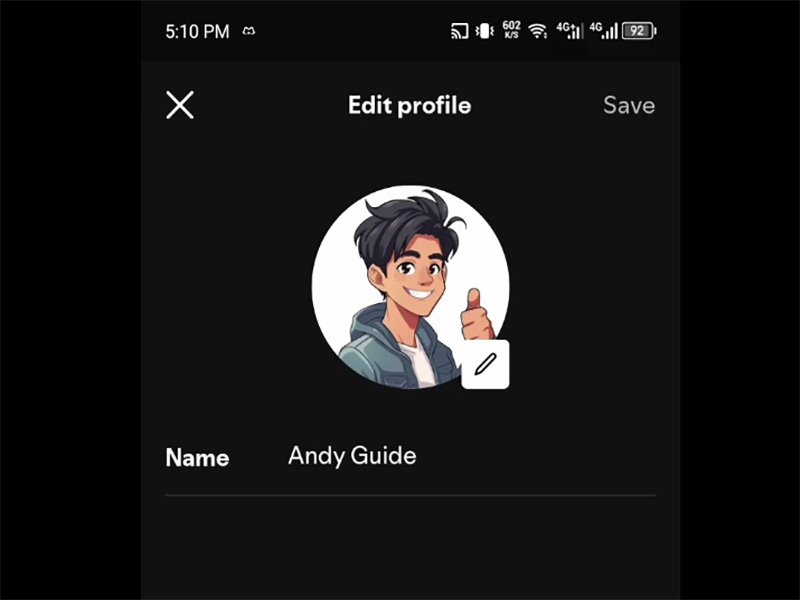
On Desktop (Windows & Mac)
- Open Spotify desktop app
- Click your profile name
- Select Profile
- Click Edit Profile
- Change your display name
- Save changes
This method works the same for both Windows and mac users.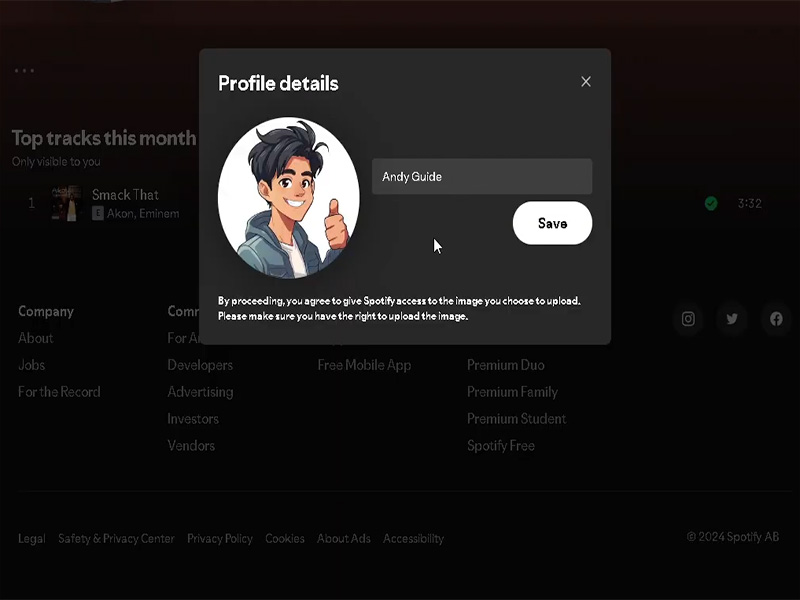
How to Create a New Spotify Account with a New Username
If you truly need a completely new username, the only option is to create a new account.
Steps:
- Log out of your current Spotify account
- Sign up again using a different email address
- Choose a new display name
- Transfer playlists manually or using third-party tools
This approach allows a fresh start, but you will lose your listening history, followers, and recommendations.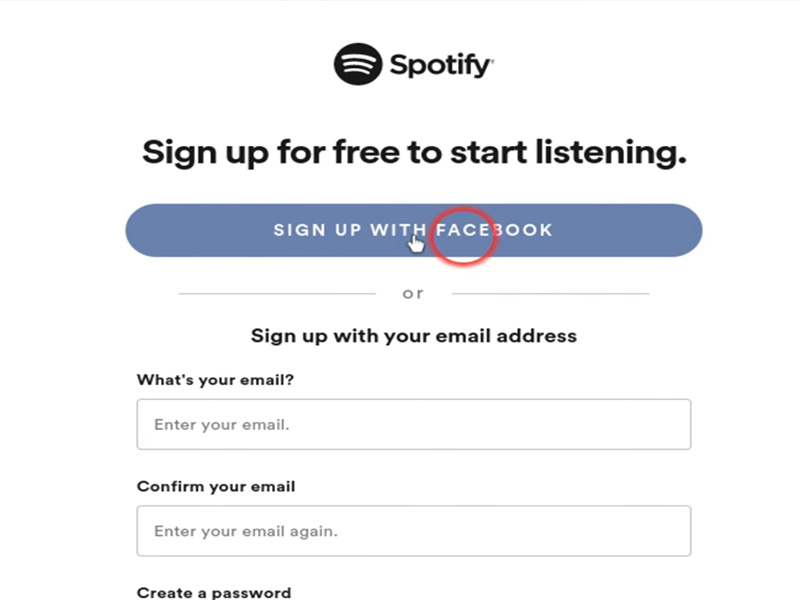
Tips to Customize Your Spotify Identity
If you can’t change Spotify username, you can still personalize your profile by:
- Changing your display name
- Updating your profile picture
- Editing your bio
- Creating custom playlist covers
These changes make your Spotify profile unique and recognizable.
Common Questions About Spotify Username Change
Q: Why can’t I update Spotify username?
A: Spotify uses usernames as permanent internal IDs, so they can’t be edited for security and data consistency reasons.
Q: Can I hide my Spotify username?
A: Yes. Most users only see your display name, not your system username.
Q: Will changing display name affect my playlists or followers?
A: No. Your playlists, followers, and listening history remain unchanged.
Final Thoughts
While a direct Spotify username change is not supported, you can easily update Spotify username appearance by editing your display name. This allows you to rename Spotify account publicly without losing data or starting over.
For most users, changing the display name offers the perfect balance between personalization and account stability.