Want to liven up your live stream on OBS? You might want to try adding background music. Currently, the main methods are using the Spotify stream widget or the Spotify OBS snip feature.
This guide will explain in detail how to have Spotify Show Up On OBS, so you won’t need to look for other guides.
Getting the Audio into OBS
Before considering how to display the music on screen, you should first consider ensuring that viewers watching the live stream can hear the music you’re playing.
You can use the following methods:
- Desktop Audio Capture:
This is currently the most commonly used method.
- Go to File > Settings > Audio.
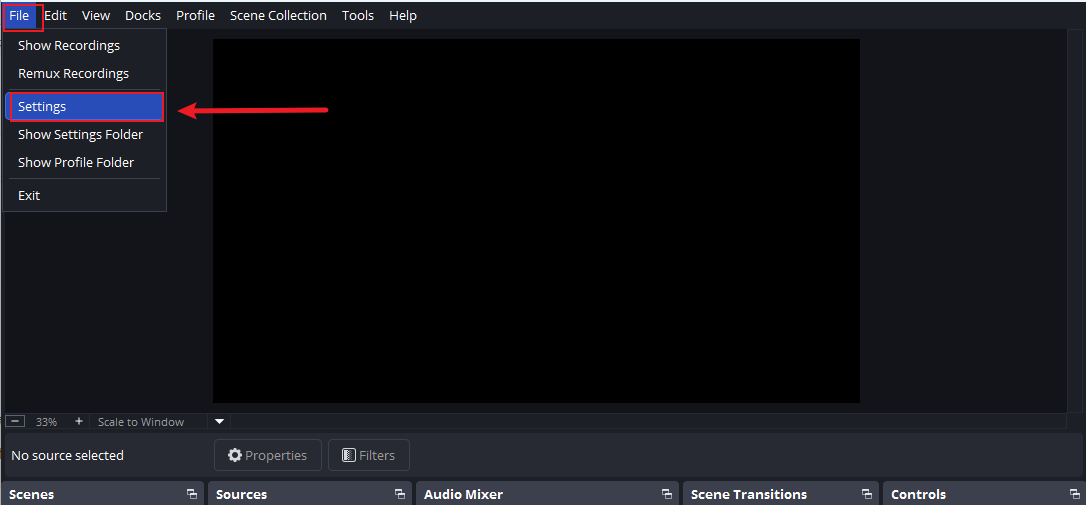
- Under “Global Audio Devices,” ensure your primary desktop audio device is selected.
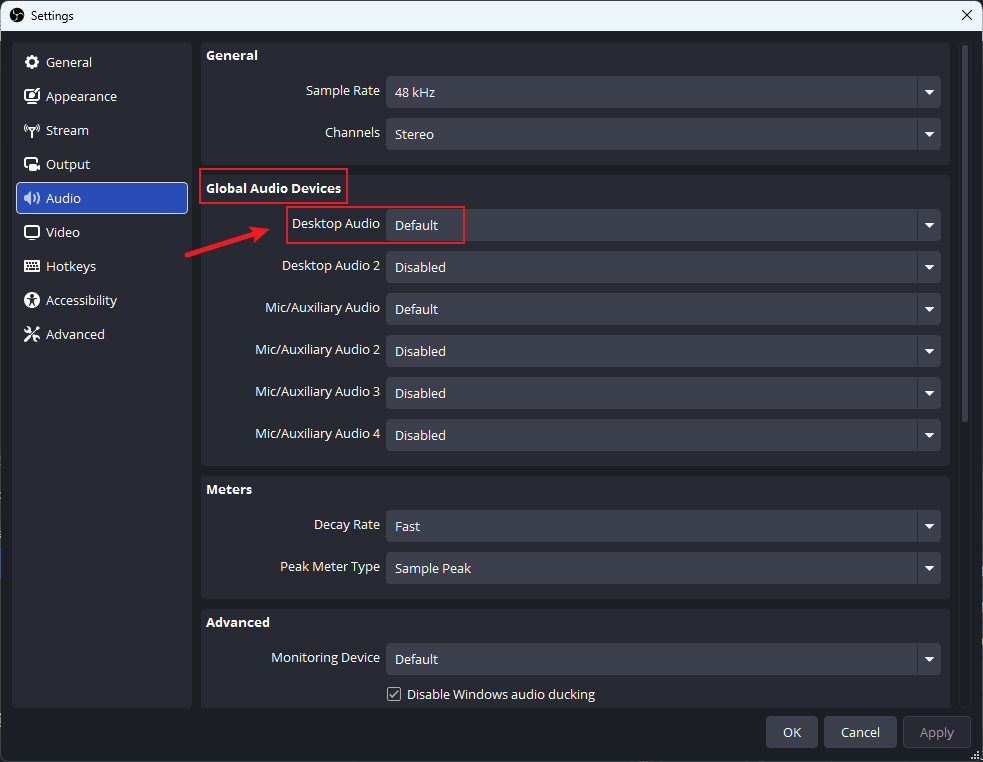
- Click OK. The audio from Spotify and all other applications will be captured under the “Desktop Audio” meter in the mixer.
The downside of this method is that you need to manually mute other applications and then turn them back on when needed.
- Application Audio Capture (Beta – Windows only):
This method requires a Windows system and OBS Studio 26.0 or later.
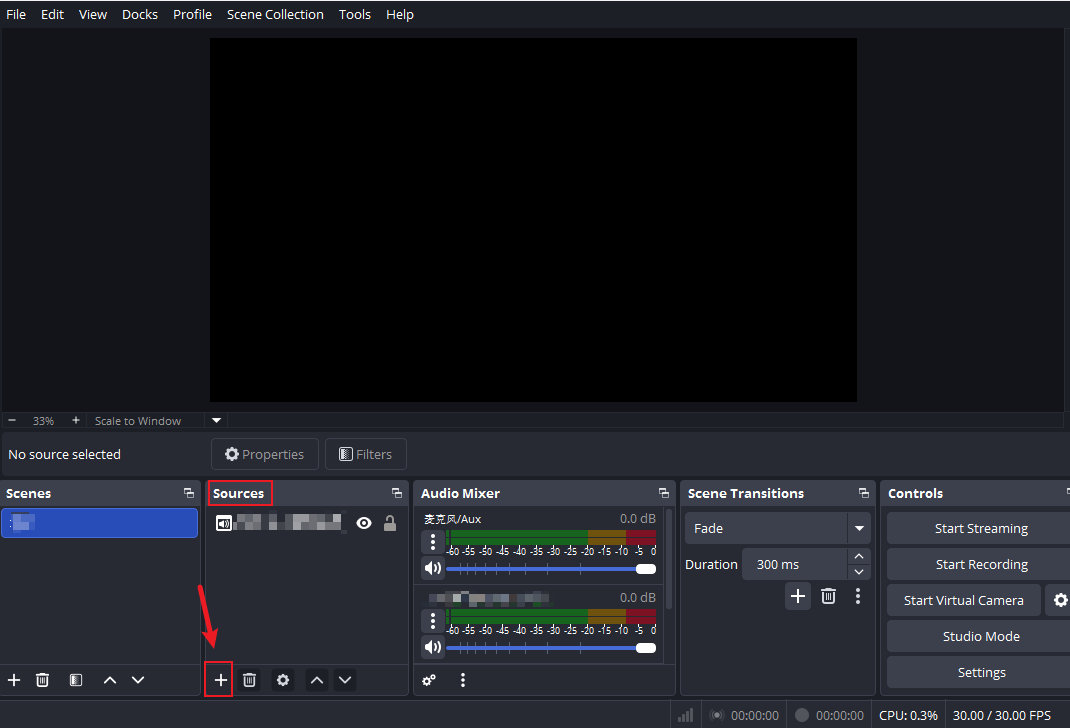
- In OBS, go to the Sources panel and click the + button.
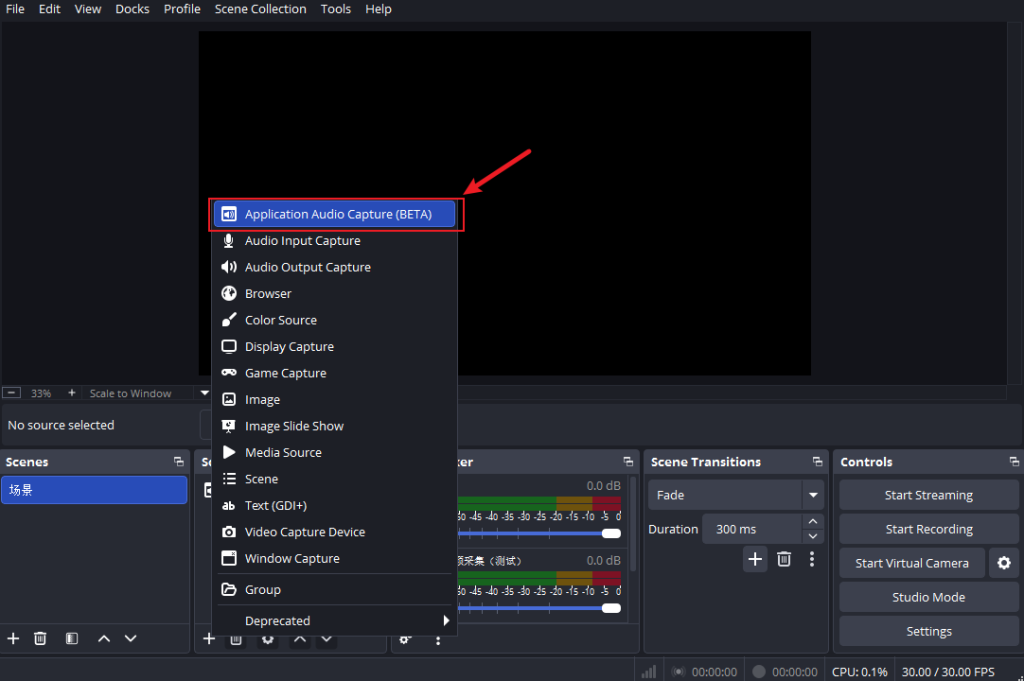
- Select Application Audio Capture (Beta).
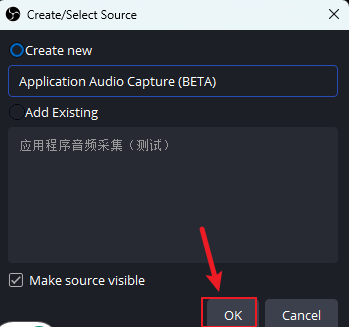
- Name the source (e.g., “Spotify Audio”) and click OK.
- In the properties window, select Spotify.exe from the dropdown menu. If Spotify is running but not listed, try restarting OBS.
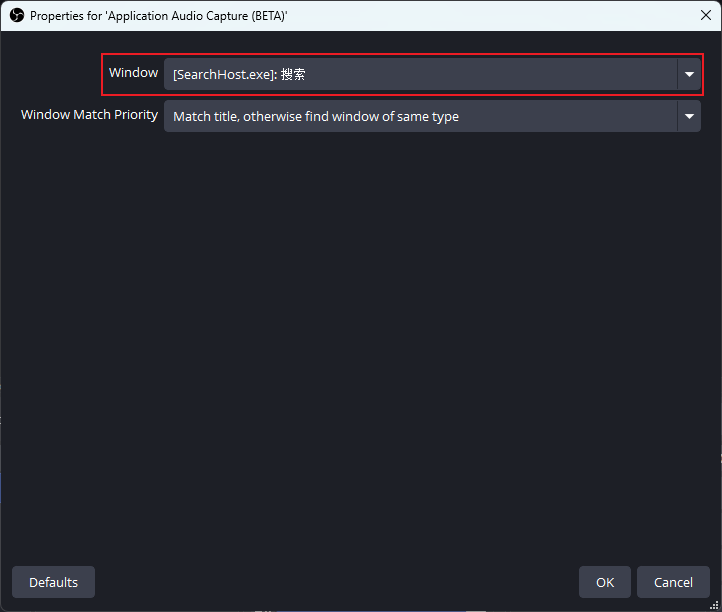
- Click OK.
Showing the Song Information
Once you’ve confirmed that the music is playing correctly, you can use a tool to display the currently playing song on Spotify Premium Mod in the frame, sharing your song with your audience.
You can use the following four methods:
- Use the Stream Widget for Spotify
The Stream Widget for Spotify is a user-developed utility released on the OBS forum. It’s completely free and offers some customization options. It can display song, artist, and song duration.
- Download the tool.
- Launch the tool.
- Customize the viewer and authenticate with your Spotify account.
- Add the “Spotify Viewer” window to your live stream using OBS software.
The biggest advantage of this tool is its simplicity and ease of use; no complex setup is required, but customization is limited to basic appearance.
- Using Snip for a Simple Text Display
Snip is a free, lightweight tool that writes the current song information to a text file, which OBS can then display.
- Download Snip from its GitHub releases page and extract the ZIP file.
- Run Snip.exe. It will open a webpage to authenticate with your Spotify account.
- In OBS, add a new Text (GDI+) source.
- In the source properties, check the box for Read from file and browse to select the Snip.txt file created in the Snip folder.
- The text source will now update automatically with the current song.
You can customize the font, color, and even add a scroll filter. You can also add the album art by creating an Image source and pointing it to the Snip_Artwork.jpg file.
- Using Web Widgets (Amuse) for a Polished Look
Amuse’s main function is to create a “Now Playing” browser overlay that displays your Spotify Lite APK mod music at the top.
- Create a Widget: Visit the 6K Labs website and select the Amuse widget.
- Create an account and follow their steps to connect your Spotify account.
- Copy the URL: After configuring the widget’s appearance (e.g., style, size, colors), the service will provide you with a unique URL.
- Add to OBS: In OBS, add a new Browser Source. Paste the URL you copied into the URL field and set the width and height.
Amuse Spotify OBS offers greater customization for the appearance of Spotify Modded content and is very easy to set up.
- Using Snip Spotify OBS Functionality
You can use OBS’s Window Capture source to display the Spotify app itself on your stream.
- Open the Spotify desktop application and play a song.
- In OBS, click the “+” under “Sources,” then select “Window Capture.”
- Select the [Spotify.exe] window.
- Use Alt + Drag to crop the window, showing only the user.
For a cleaner look, you can apply a Color Key filter to remove the gray background, leaving only the text visible. This method is simple but lacks customization.
Important Considerations
When using music in your live streams or videos, be mindful of the copyright and licensing terms. To avoid this, consider using royalty-free music from services that are licensed for use in live streams.
Have you learned how to show your Spotify music on OBS?
Many of the sharing methods are frequently used by other users. These methods are mature and guaranteed to work. Feel free to learn using this guide, and we look forward to seeing your results.